
These instructions describe the entire approval process for time requests and time tracking reports.
To share, you must have the appropriate permissions (employee permissions).
To ensure that you are notified of new requests and when reports submitted by your subordinates are approved, you must enable the appropriate notifications (Notifications).
If notifications are enabled, you will receive an email and/or an in-system message about every new vacation guest…
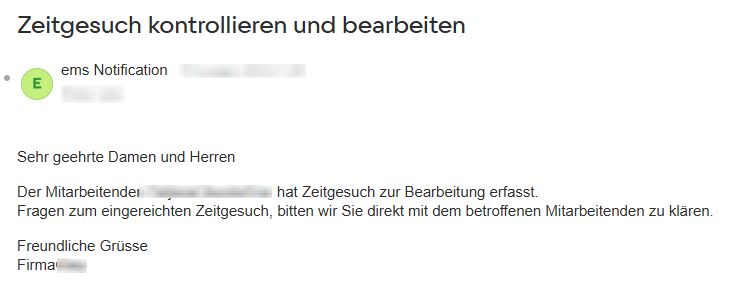
… as well as the employee’s approval of the report.

Step 1 (optional) – Review each time request (vacation request) individually #
Time Tracking → Edit Employee → Time Requests Tab
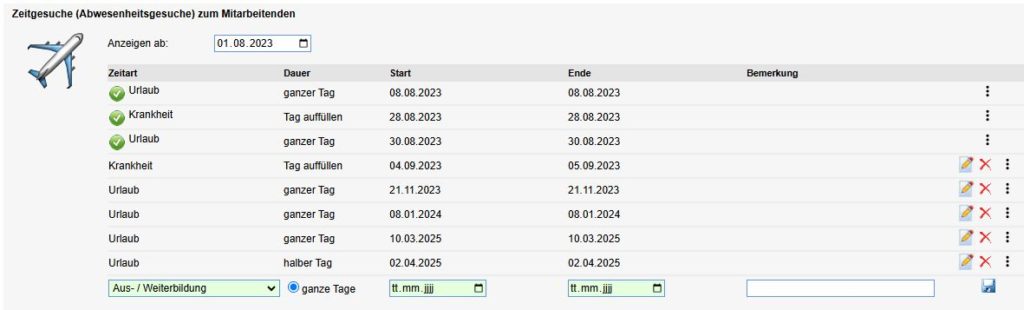
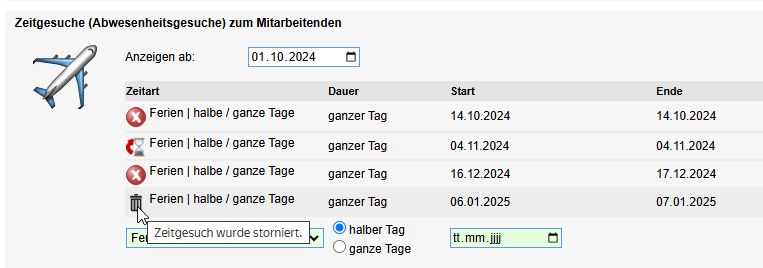
Here, you can attach a document to the request and cancel approved requests.
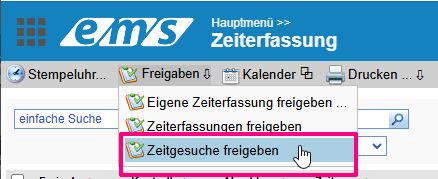
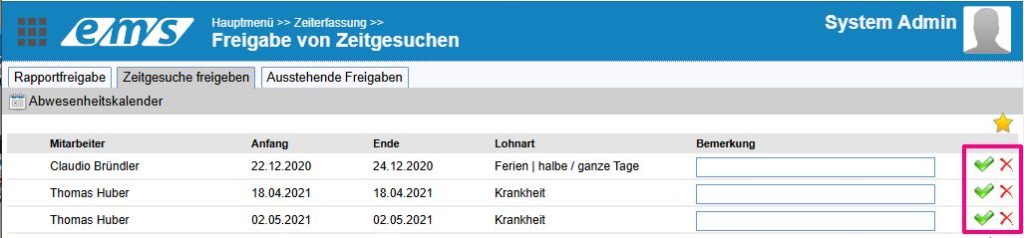
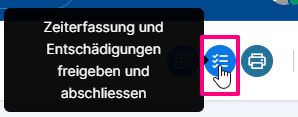
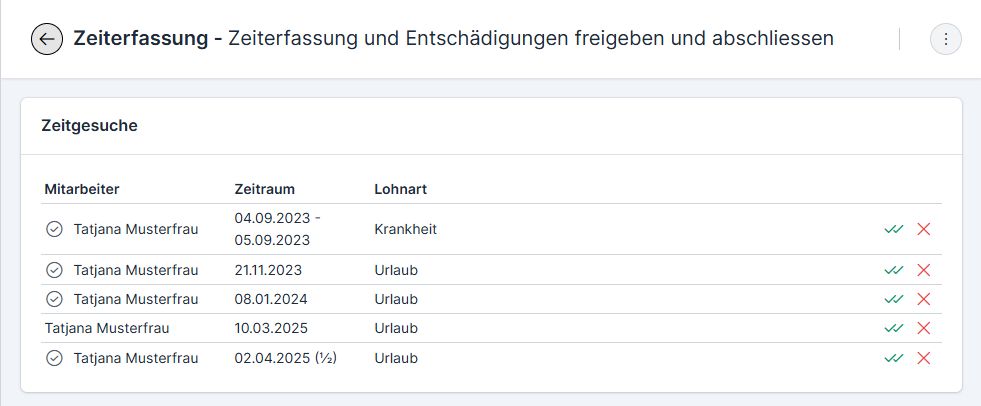
Step 2 – Approve Time Requests (Vacation Requests) / Bulk Approval #
Version X2 #
Version X3 #
Error Appearing When Approving Time Requests #

Possible error messages are described here: Error Messages When Approving Time Requests
To approve it, correct the error and resubmit it.
Step 3 – Approve Time Tracking and Compensation #
Option 1 – Share the current time period #
Version X2 #
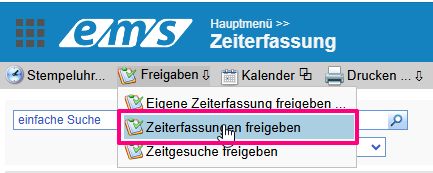
Time Tracking → Approvals → Approve Time Entries
Version X3 #
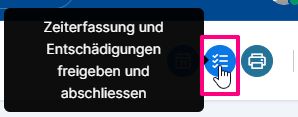
Time Tracking → Approve and Finalize Time Tracking and Compensation
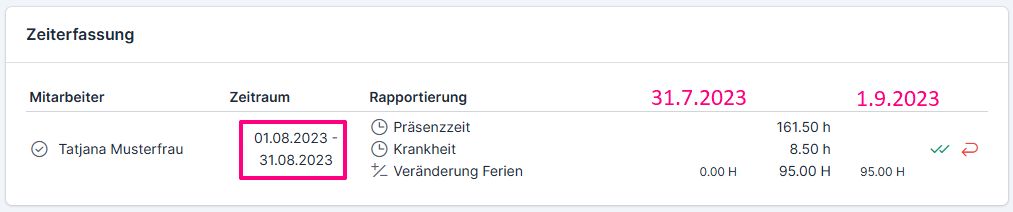
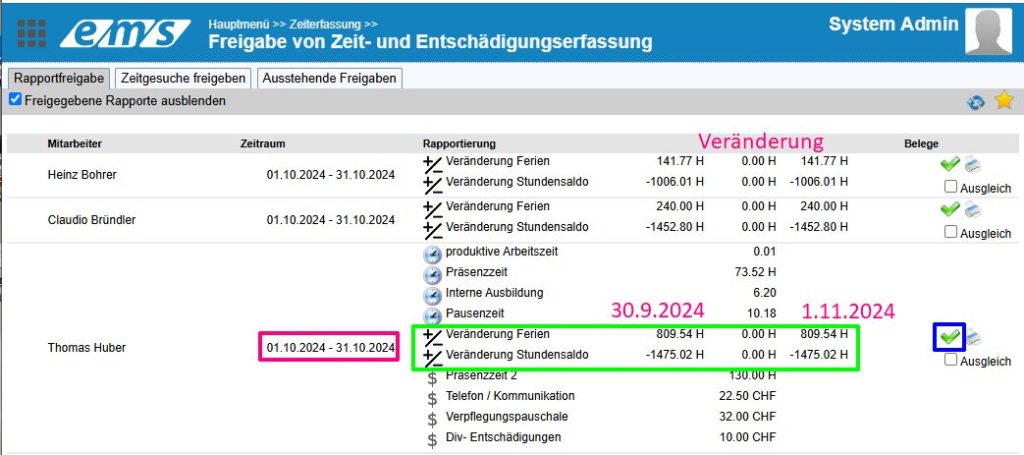
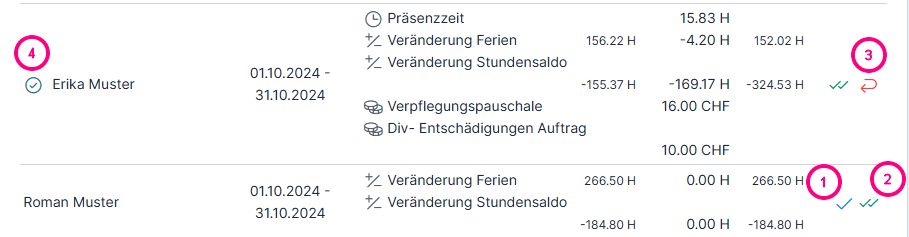
The approval list for time entries allows you to:
- to approve the time tracking as a project manager;
- to approve the time entries as a supervisor;
- Reject the time entry, stating the reason (so that the employee can make the necessary corrections)
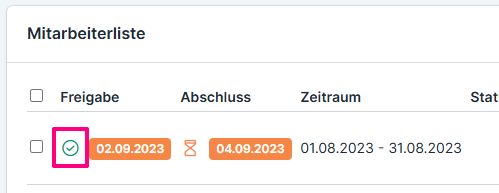
Reports approved by the employee are marked with a green check mark (4).
Option 2 – Share Any Time Period #
Employee Management → Edit Employee → Time Tracking Tab → Active Data Tracking Period

Set the time period using the drop-down menu or manually (from-to for time and expenses) → Save

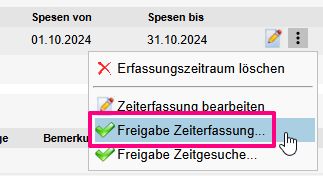
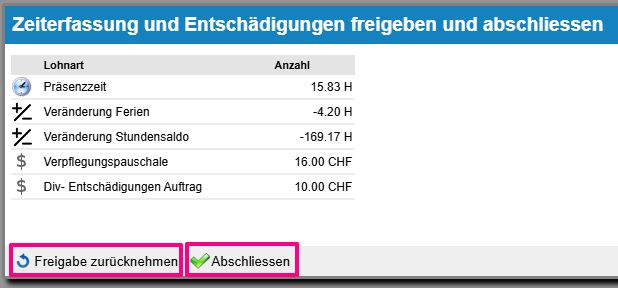
The two approval buttons appear once the employee has already approved their report. If necessary (e.g., if you want to make changes to the report), you can revoke their approval using the left button. Use the right button to finalize their report.
Error while approving time entries #
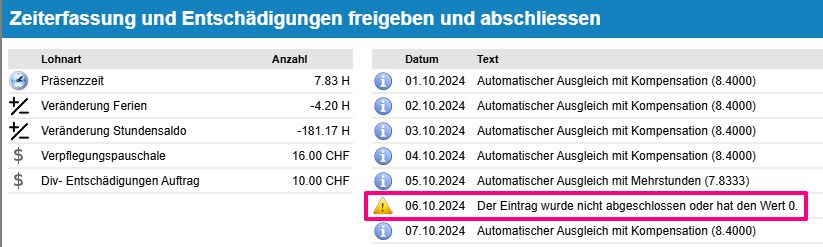
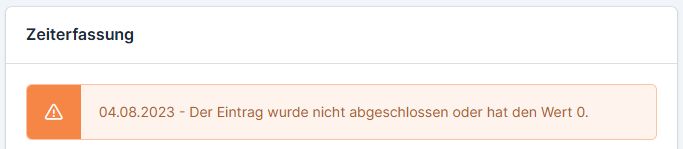
You can learn more about error messages that appear when approving time entries here: Warning and Error Messages During Approval
To approve it, correct the error and resubmit the report.
Check Vacation and Hour Balances #
Additional guides explain how to check vacation and hour balances: Hour and Vacation Balances (ems Web) and Hour and Vacation Balances (ems Mobile)