
The general description of authorization roles (structure, administration, settings) can be found in the following instructions: Authorizations.
It is important to select the necessary authorizations when creating a new employee profile. You can read more about this here: Create new employee profile.
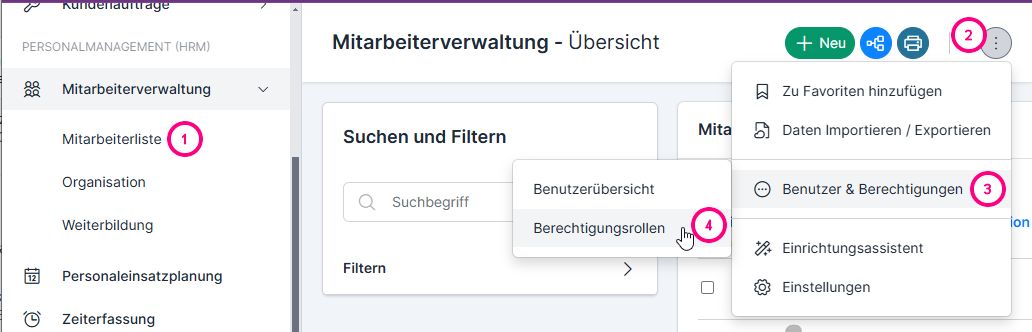
The authorization roles are managed via Employee administration → Advanced menu → Users & authorizations → Authorization roles.
Automatically created authorization roles for new employees #
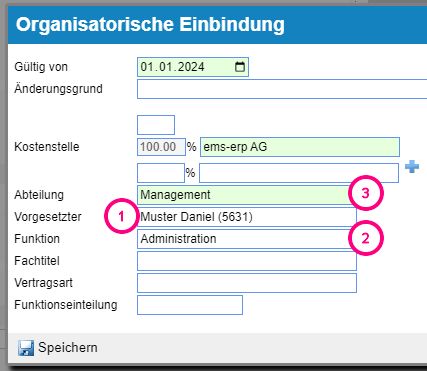
When creating a new employee profile(Create new employee profile), the integration is recorded at the beginning. Based on the completed fields, the authorization roles are automatically created or added to the new employee.
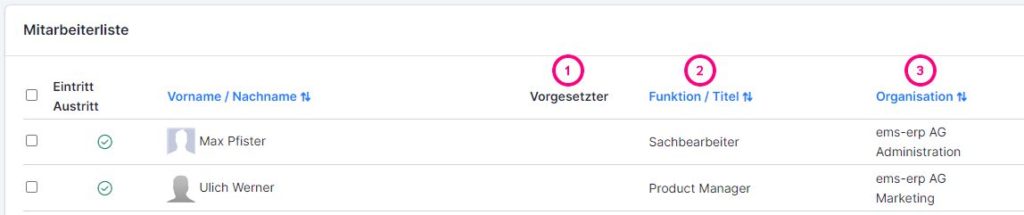
The data from the Supervisor (1), Department (2) and Function (3) fields is automatically transferred to the Employee of (1), Employee function (2) and Organization (3) roles. Each time the integration is changed, the employee is assigned to the new roles.
Types / provisions of the authorization roles #
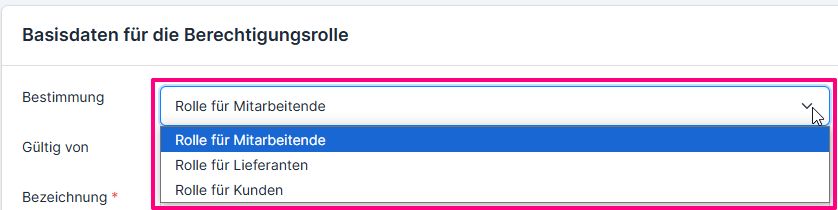
There are basically 3 types of authorization roles:
- for employees (described in these instructions)
- for customers (who are granted access to the system) – read more: Authorization roles for customers
- for suppliers (who receive access to the extranet) – read more: Authorization roles for suppliers
The role is defined when it is created. The accessible settings / authorizations vary depending on the definition.
Create new authorization role #
Record basic data #
Click Plus to create a new authorization role.
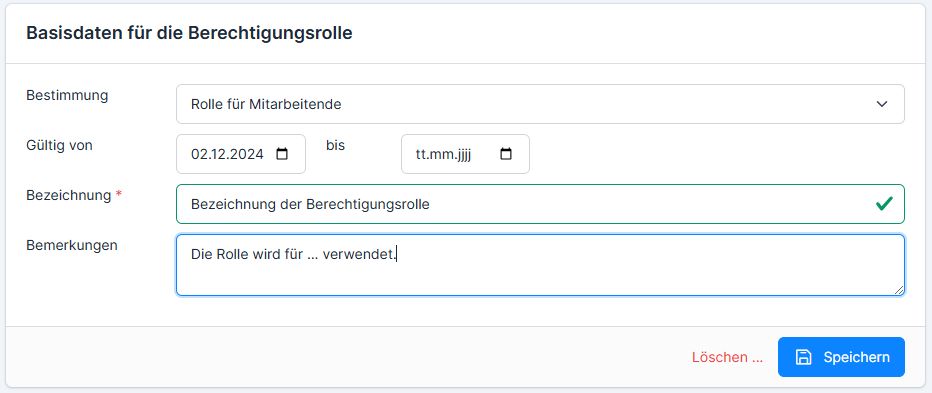
The following data is stored in the basic screen:
- Purpose: for employees
- Validity of the role: from – to (you can set the validity for a certain period of time, so it is deactivated on the to date)
- Designation of the roll
- Remarks: if the role is stored for certain purposes, a comment can be left here.
Then click on Save. The full screen of the role opens.
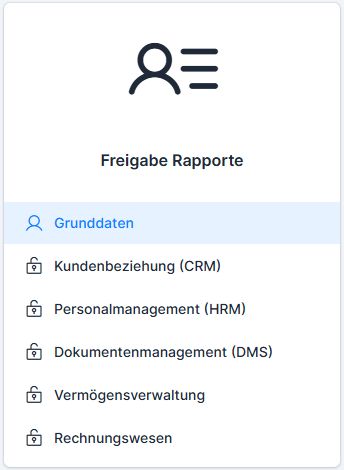
Depending on the modules activated, the role can consist of a maximum of 6 tabs (the tabs correspond to the main blocks of the navigation menu).
Global settings #
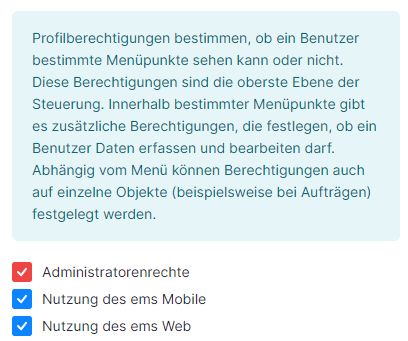
Settings Profile authorizations under global settings determine the basic settings:
- Administrator rights – such role participants receive extended rights (the highest authorization, for example, logos can be added, or terminals can be connected or deactivated)
- Use of ems Mobile / ems Web
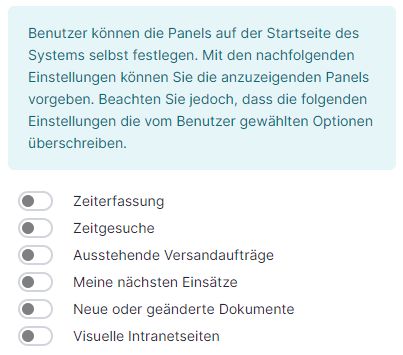
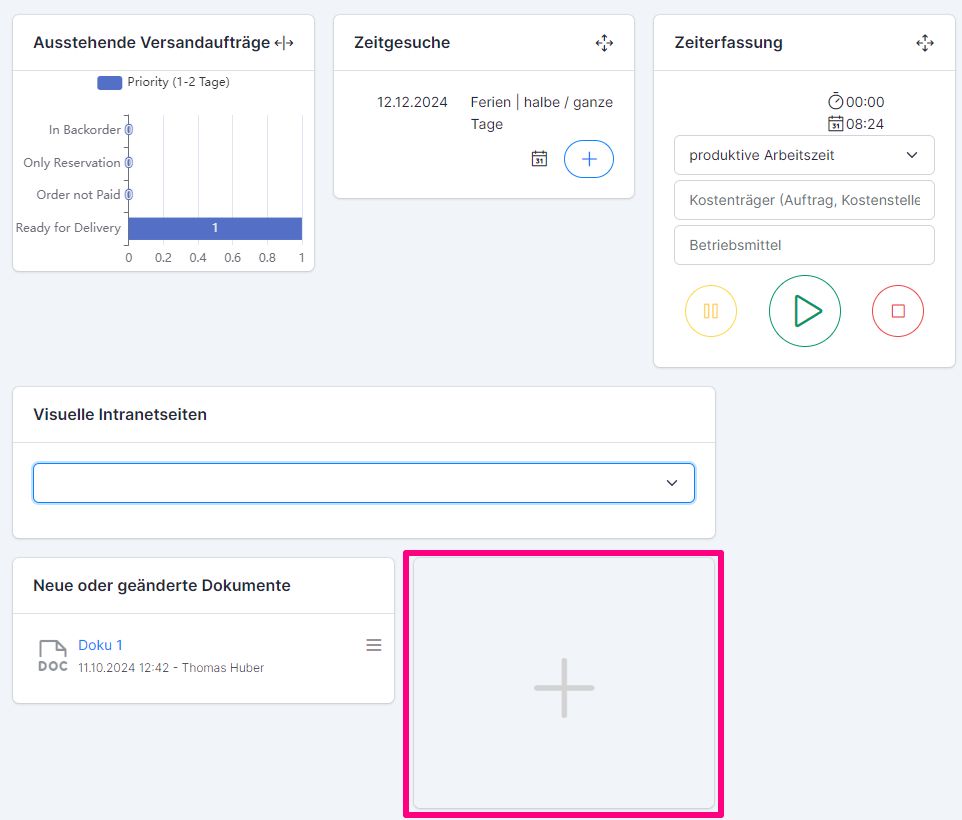
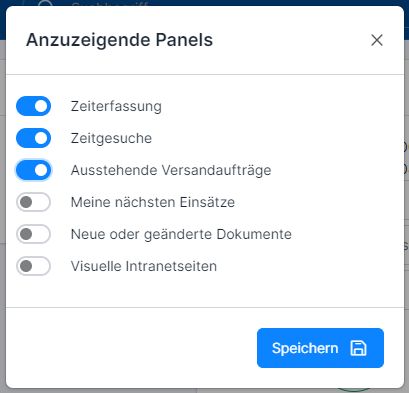
- Activation of the panels on the start page
Panels on the home page #
Panels to be displayed on the start page can also be added manually: to do this, click on Plus and select the required panels. More about this: Personal layout settings
Profile authorization settings #
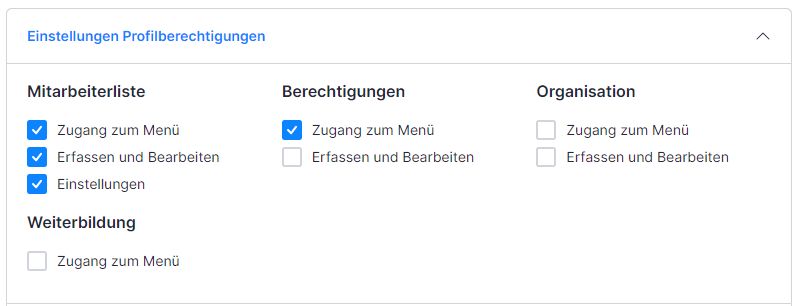
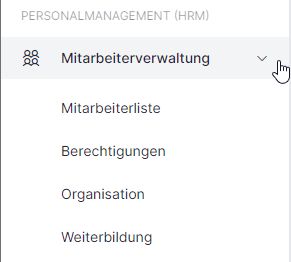
This section contains the settings for the profile authorizations. Depending on the module, it contains one or more module components (depending on the module). The settings vary depending on the module.
- Access to the menu – the role participant is given access to this menu item
- Enter and edit – the role participant may not only view but also enter new data and edit existing data
- Settings – the role participant can change the parameters of the module
- Set order completion /client orders/ – the role participant may complete the client orders
Assignment of the role to employees #
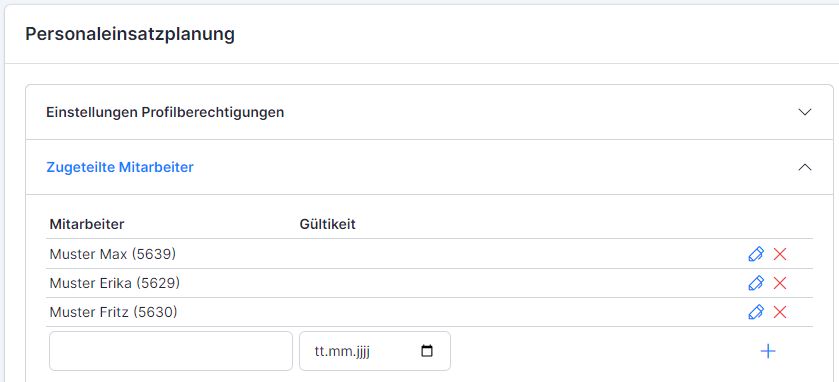
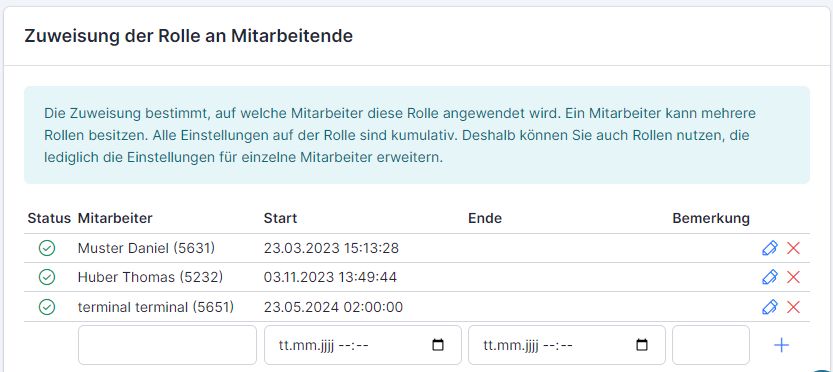
An unlimited number of role administrators can be assigned. The name is entered in the empty field and saved with Plus.
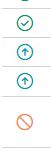
The possible statuses of administrators are: active (green tick) / reassigned (up arrow) / deleted-inactive set (red crossed-out circle):
Assigned employees #
The employees for whom the role participants are authorized to plan personnel deployment and record time are recorded under assigned employees.
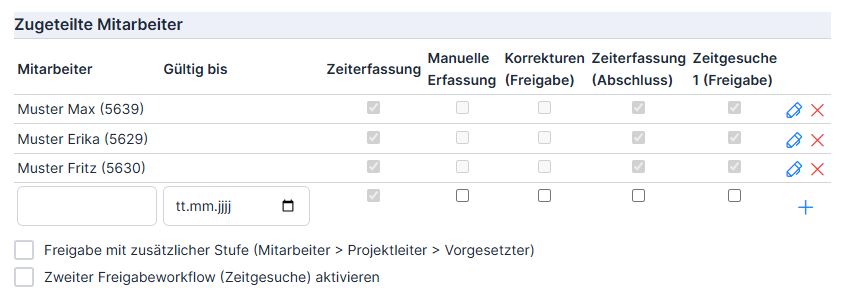
- Time recording column – the role participant is authorized to view the time recording of this employee
- Manual entry column – the role participant is authorized to change the time bookings of this employee
- Corrections column (release) – the role participant is authorized to release the corrections of time stamps by the employees who are only clocking in with the active manual entry
- Time recording (completion) column – the role participant is authorized to complete/release the employee’s time recording report
- Time requests 1 column (release) – the role participant is authorized to release / reject the time requests (vacations, illness, etc.) of the employee
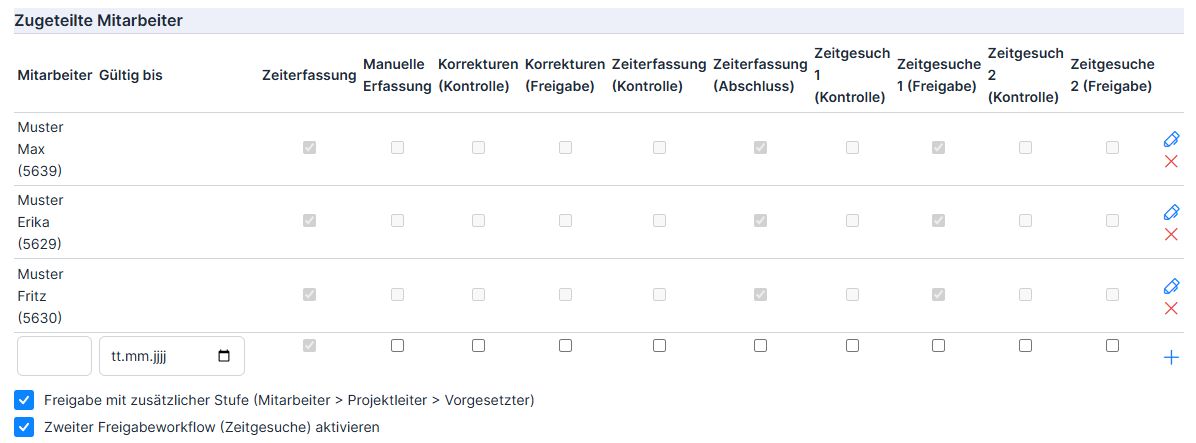
The option Release with additional level enables the intermediate control of the time recording reports by a project manager /Additional control columns Corrections (control) + Time recording (control) + Time request 1 / 2 (control) are displayed/.
The option Activate second approval workflow (time requests) activates the 2nd group of time requests /the additional column Time requests 2 (control / completion) is displayed/. Time requests 2 can be used if certain types of time can only be confirmed / rejected by the system administrator, head of department or HR manager (e.g. non-work accident). The time types are marked as time requests 1 and 2 under time and compensation types.
Time and compensation types #
Selectable time and compensation types #
These time and compensation types are available to the role administrators in their (own) time recording (for recording or requesting as a request).
The option Activate second approval workflow (time requests) activates the 2nd group of time requests /An additional column Time request 2 is displayed/. Time requests 2 can be used if certain types of time are only to be confirmed/rejected by the system administrator, head of department or HR manager (e.g. /Non)occupational accident, (un)paid absence, etc.). The release of such time requests must be set accordingly among assigned employees.
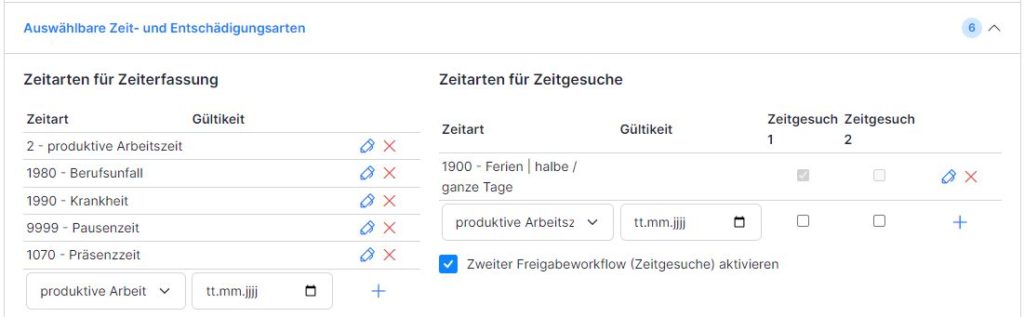
The compensation types and their limits are stored under Authorizations for compensation types.
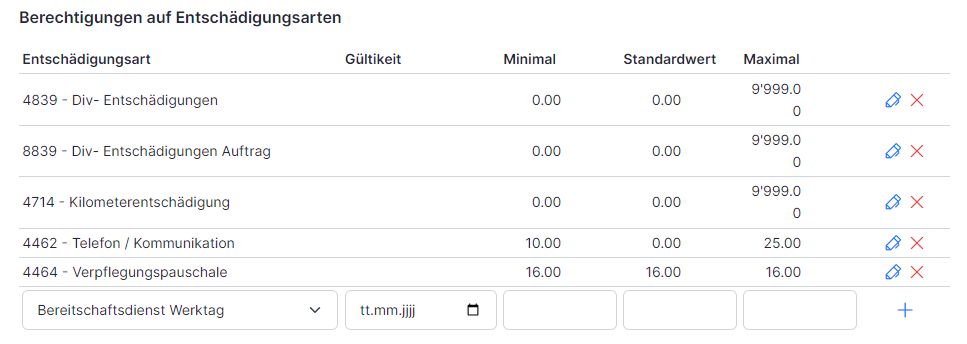
If it is to be a fixed value, then we set the minimum, standard and maximum value to the same value (e.g. 16) and so we have a fixed value. If the employee enters this compensation type, the fixed value is adopted – it will not be possible to change the value.
If the compensation is within certain limits, set the minimum and maximum limits. Only one value from this range is accepted when entering – a warning message appears if an invalid value is entered.
Time and compensation types for administrators #
The time and compensation gardens for administrators are those that the role administrators can record for all employees . (These are the time types that the employees are not allowed to enter themselves, only the administrator).
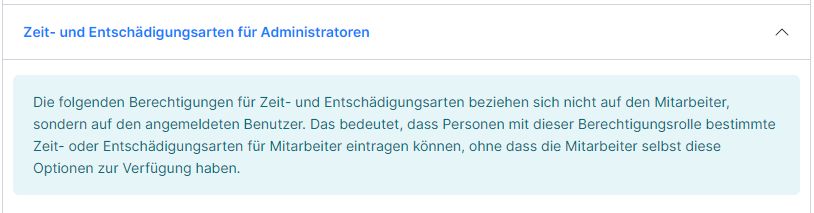
Time types can be blocked for different time recording types (hourly wage, monthly wage, etc.) (e.g. vacation for hourly wage earners and external staff). It is therefore possible that the time type is not visible despite the authorization. Settings for the time types can be found in the Time recording → Settings menu.
Notification settings #
Notifications can also be set for the authorization roles. You can read more about this here: Notifications
Authorization templates for new elements #
The authorization templates define the set of authorizations for the selected department. The template is used for newly created objects (quotations, sales orders, supplier orders, etc.) – they have no effect on existing orders! Departments for which this template applies are selected in the Organization field.
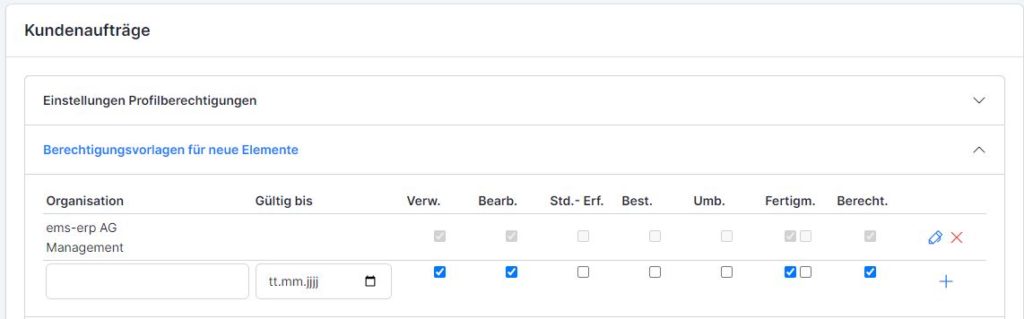
The authorization templates can be set for the modules activated for the customer (possible are quotation management, sales orders, customer orders, supplier orders, merchandise management, operating resources, internal orders, documents).
The checkboxes stand for the following functions:
- Administer. – Manage (the object is visible in the list, can be evaluated but not yet edited)
- Edited. – Edit (the object can be selected in the list and opened in the detailed view – this allows all data on the object to be edited).
- Record hours – Record hours
- Best. – Trigger orders
- Umb. – Carry out rebookings
- Finished m. /Only customer orders/ – Completion notification (whether the order status can be changed – blocking / billing / completion)
- Authorized. – Authorizations (individual authorizations can be adapted (in deviation from the template) in the specific object)
If, for example, a new sales order is entered in the specified department, the selected authorizations are added to this sales order.
For the object (sales order, quotation, etc.), the assigned authorizations can be viewed and changed in the Authorizations tab.
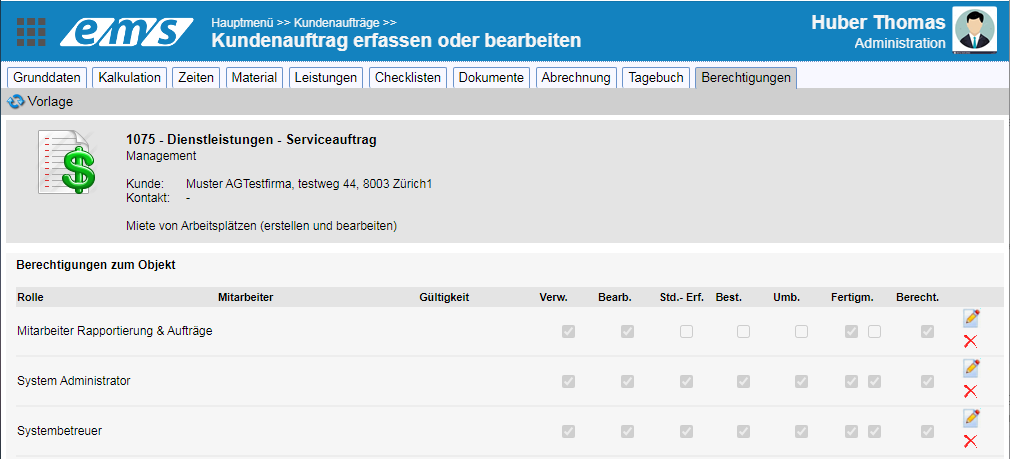
The Template button overwrites the authorizations with the data from the role authorization templates:

Archive data access and evaluations #
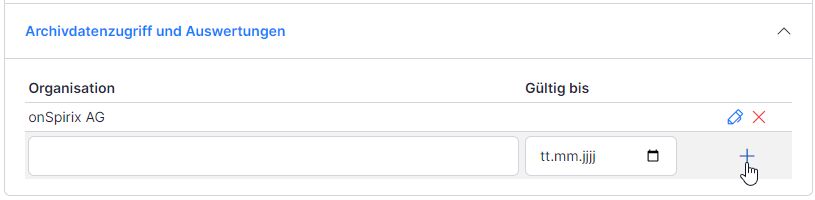
Archive data access and evaluations allow role participants to access the older objects (before they were employed or before the authorization role was assigned to them). A to date can be specified; if nothing is specified, 31.12.2099 is automatically set.
Automatically and manually assigned authorizations #
A distinction is made between 2 types of authorization roles:
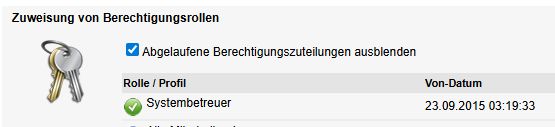
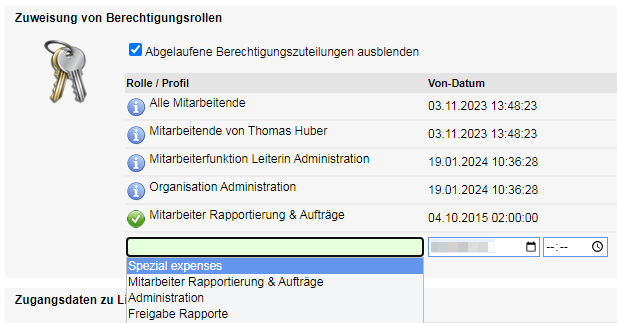
- Manually set roles (marked with the index finger symbol in the overview and with a green tick in the authorization list of the employee profile)
- Automatically set roles (in the employee profile have the remark“Auto-Add“; in the overview – a universe icon; are automatically assigned after the profile is created overnight or when the maintenance job interface is executed) – the employees of an auto-role must not be added manually – they are automatically activated by the system according to the department and function of the employee at night after the profile is created. The automatically created roles can be used to store the authorizations for employees of certain superiors, with certain functions and from desired departments.


The open role also contains a note that it was created automatically.
Authorizations from and about employees #
Employee authorizations (what the employee is allowed to view and record in ems) #
You can see the employee’s assigned authorizations under Employee management → Mutate employee profile → “Authorizations” tab.
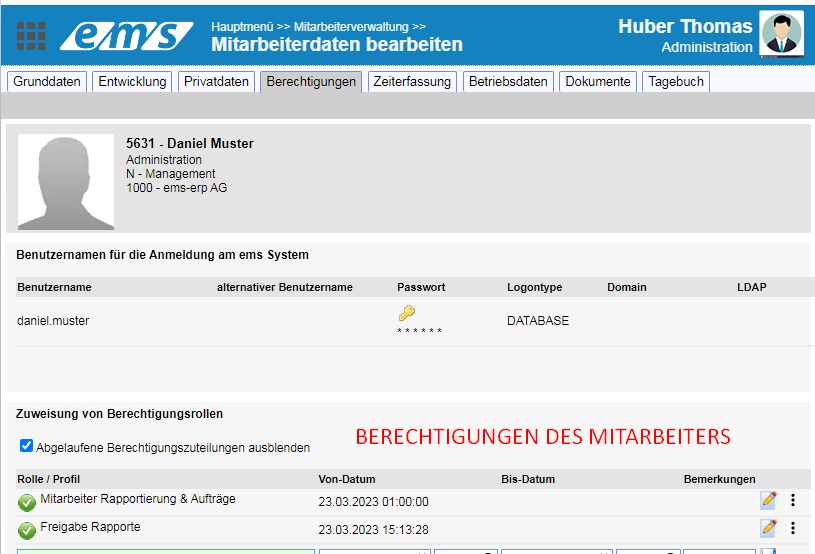
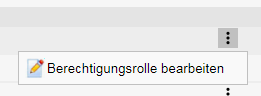
To check and edit the assigned authorization roles, open the roles by clicking on the three dots on the right → Edit authorization role.
This allows you to access the role and view which modules and functions are accessible for the role.
Authorizations for employees (who is allowed to edit the employee’s data) #
You can view the employee’s time recording and data management authorizations under Employee management → Change employee profile → “Time recording” tab → “Authorization for time recording for this employee” at the bottom.
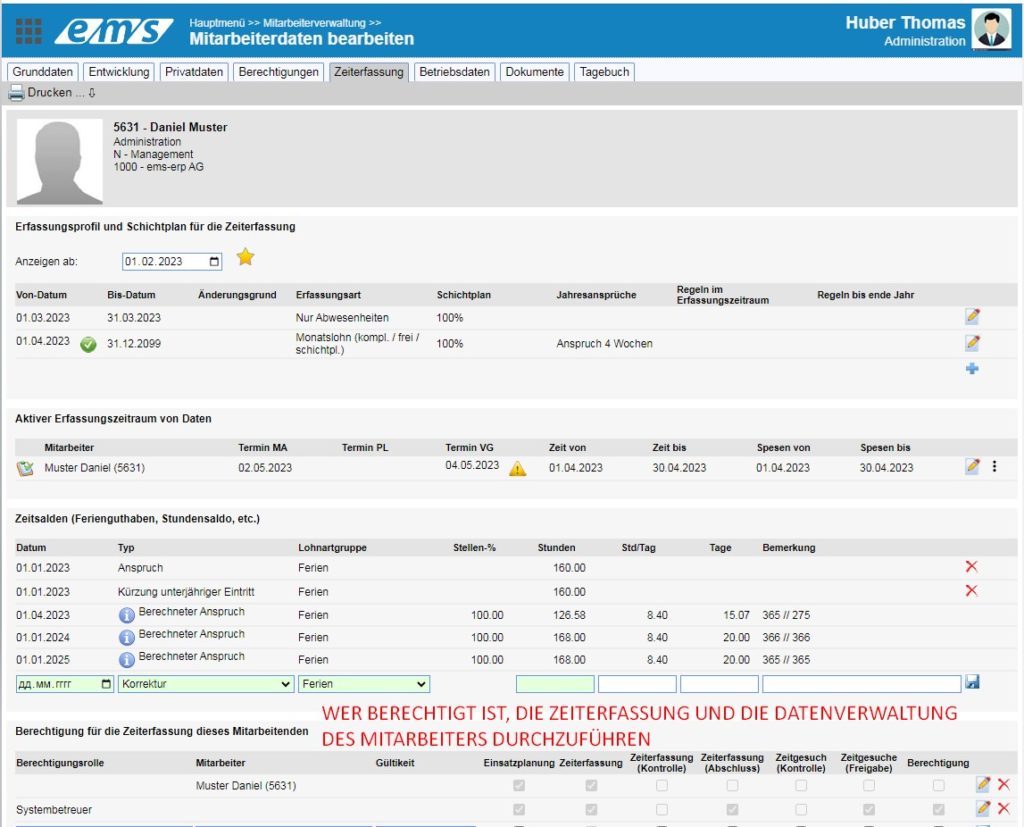
The role authorizations are cumulative in most cases. This means that if I have access to the sickness time type in group/role A and to vacation in group/role B, I can access both in the end.
BUT please note that personal authorizations have priority over authorization roles. (i.e. persons from the “Employees” column have priority over the authorization roles)
For example, if the system administrator Thomas Huber has a personal authorization and a role authorization as system administrator for the time recording of an employee, the settings of the personal authorization count. In this case, he can only record the time for the employee, but has no access to the employee’s shift planning or to the release of reports and time requests (which he is allowed to do as a system administrator). To change this, the personal authorization must be deleted.

Assignment of authorization roles #
Assignment of authorizations for the respective employee #
These authorizations are either defined in the role (recommended), …
… in the employee profile → Authorizations tab…
… or in the employee profile → Time recording tab → Authorizations assigned at the bottom → Employee column (Please note!!!! The personal authorizations have priority over the authorization roles).

Assignment of authorizations via employees #
Such authorizations are either defined in the corresponding role (with desired administrators) → Personnel management → Time recording → Assigned employees
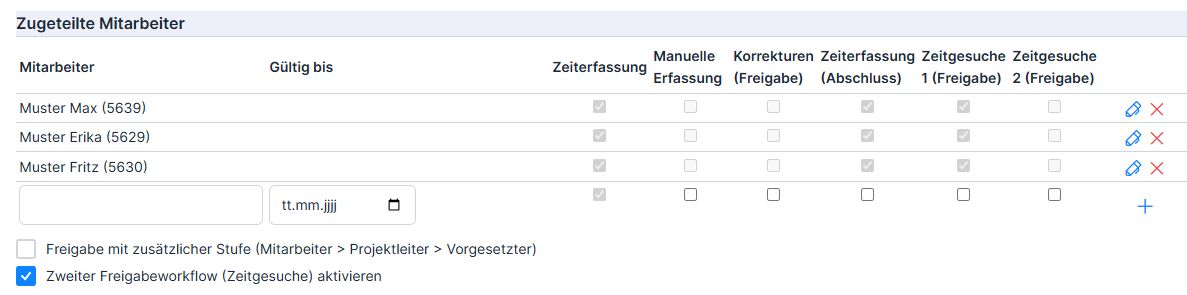
or assigned and set in the employee profile of the employee to be managed in the Time recording tab.

The setting of authorizations for employees includes
- Shift planning (whether the employee can be scheduled in workforce planning);
- Time recording (whether the time for this employee may be recorded);
- Manual entry (whether the employee’s time entries may be changed);
- Corrections (check/release) (whether the manual entries, changes or deletions of time bookings may be checked/released by the employees who only clock in with the active manual entry);
- Time recording (control/completion) (whether the employee’s time recording /by the project manager – optional/ (interim) control and /by the supervisor/ may be completed);
- Time requests 1/2 (control/completion) (whether the employee’s time requests may be (inter)checked /by the project manager – optional/ and completed /by the line manager/).
The authorizations for employees are assigned to a role or a person. In the case of the role, all participants in the role are authorized to use selected functions in relation to this employee. If the authorization is granted to individual persons, this is a private authorization that takes precedence over the role authorization.