ems Time App vs. ems Mobile and Web #
The ems Time App is a specialized app that replaces the time tracking functionality of the previous ems Mobile web application and focuses entirely on recording work hours. This app is optimized for use on smartphones and tablets. It simplifies access to the most important features and is designed for use on the go.
If you work on desktop computers, use ems Web: Basic operation ems Web
Installing the ems Time App #
To install the ems Time App on your smartphone or tablet, please read the following help guide: Installing the ems Timekeeping App (Time Tracking) on Your Smartphone.
Registration #
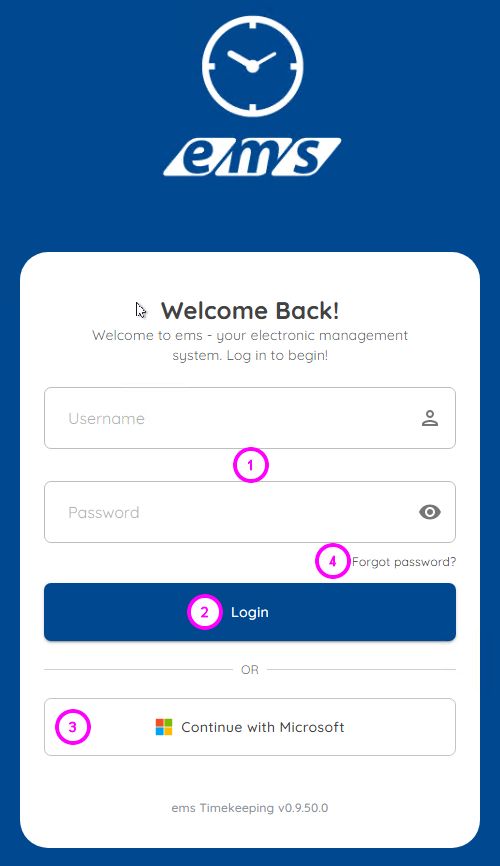
After installing the ems Time App on your smartphone or tablet, log in with your username and password (1+2) or with a Microsoft account (3).
There are basically two ways to log in to the ems mobile app:
- ems Login (classic login)
- Sign in with Microsoft
Registration with ems Login #
This is the classic access with a user name (e-mail address) and a password of your choice. This access is independent of external providers and is managed entirely via the ems platform.
When the system administrator creates your login, you will receive an informational email containing a link (provided your email address has been saved in your employee profile). When you click on it, you will be redirected to the login screen. If the login was created with the option “Change password upon first login,” you will be prompted to set a new password the first time you log in.
Now enter your ems username and password in the login screen. Then click ” Login.” You will be logged in with your username.
Sign in with Microsoft Login #
This option allows you to sign in directly using your existing Microsoft account—without having to manage a separate password for ems. This simplifies the sign-in process and enhances security by leveraging the provider’s existing authentication mechanisms.
When should I use Microsoft Login?
- If you already use a Microsoft account for work
- If you have centralized user management across your company
- If you do not want to remember several passwords
- If you would like to benefit from the enhanced security of these providers (e.g. two-factor authentication)
You can ask your system administrator whether you have a Microsoft account.
Please note: You can only sign in via Microsoft if your ems user address matches the corresponding account.
To log in, click on Microsoft Account and enter your Microsoft access data in the next screen. Once you have successfully logged in to Microsoft, you must give your consent once for the ems system to access your profile data. At the end, you will be automatically redirected back to the ems system.
Reset password #
If you have forgotten your password, click on “Forgot password?” (4), enter your username in the form that appears, and then click the “Reset password” button. An email will be sent to your email address. Click the link in the email. You’ll be redirected to the password reset screen. Here, enter your new password twice and confirm by clicking “Save.” Then log in using your username and your new password.
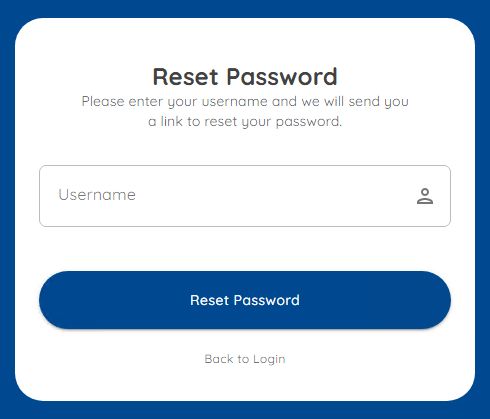
Important! This option applies only to the ems login. If you have forgotten your Microsoft password, you must request a reset through Microsoft.
Navigation #
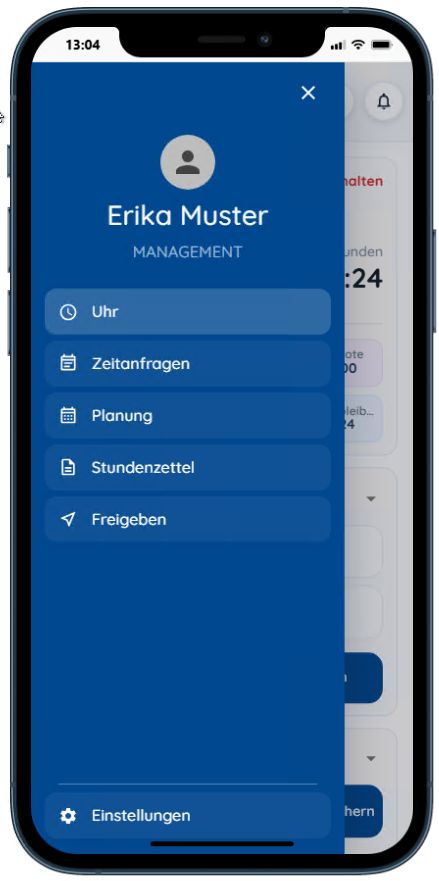
Click on the navigation menu:
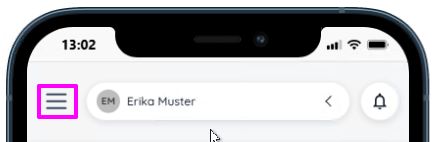
Select the desired menu area:
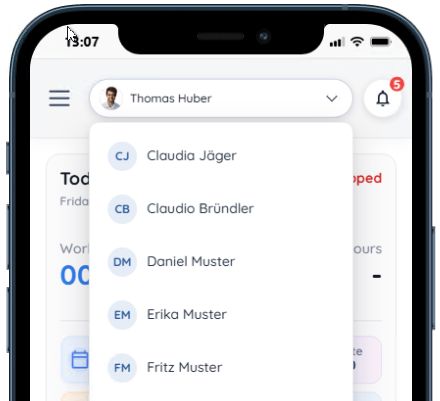
If you are authorized to view and edit other employees’ time entries, you can switch between them using the drop-down list at the top center.
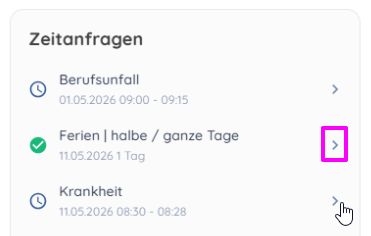
To view a record, click the arrow. Approved/completed records are marked with a green check mark.
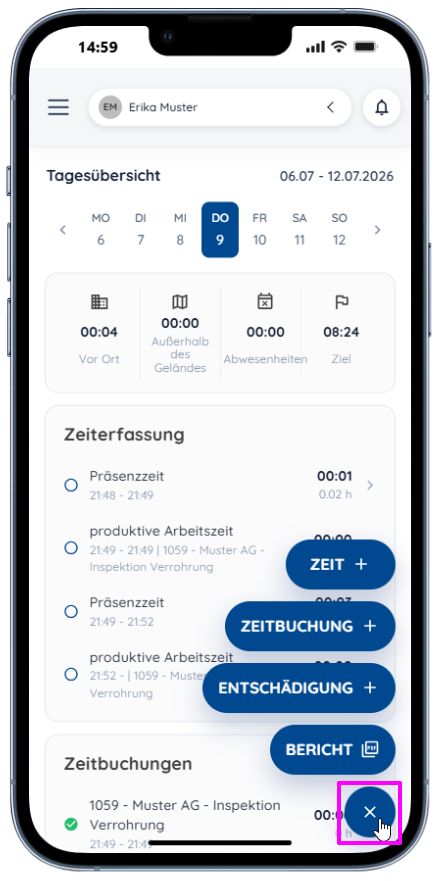
Functions #
Individual functions in the menu area are displayed when you click the button at the bottom:
You can read about individual functions in further instructions:
Time Tracking: Entering and Editing Times (ems Time App), Entering and Editing Time Requests (ems Time App), Hour and Vacation Balances (ems Time App), Approving Time Entries (ems Time App)
Compensation Tracking: Entering and Processing Compensation (ems Time App)
Notifications #
The bell icon opens the notifications for the selected user.
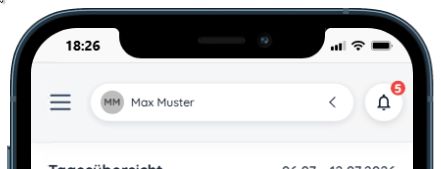
These notifications will inform you, for example, about new time requests and upcoming approvals of time reports for the employees assigned to you.
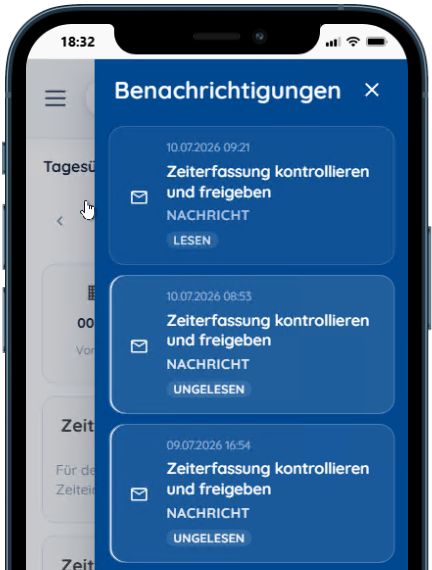
To learn how to set up notifications, click here: Notifications.
News messages are managed as follows: Text templates for notifications (emails)
Settings #
The menu area offers the following functions:
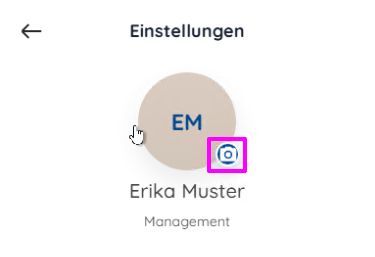
- Upload an employee photo
- Selecting a Language-Country Combination

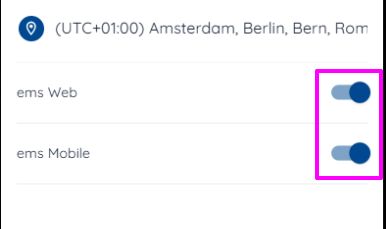
- Add the icons for ems Web (Basic ems Web Operations) and ems Mobile (Basic ems Mobile Operations) to the navigation column
- Change Password
- Log Out / Switch Users