The ems system offers various ways to check your hour and vacation balances. This guide is intended for administrators and supervisors. The following guide explains how employees can check their balances: Checking Your Own Hour and Vacation Balances (ems Web)
The system administrator can set the minimum and maximum limits for the balances so that if these limits are exceeded or not met, the report cannot be released (a warning message appears). This helps prevent the hourly balance from going into the negative and ensures that vacation days are not used in excess. You can find this under Time Tracking → Settings → Hourly Credit (X2.0) / Balance Groups (X3.0)
Option 1 – View balances for all employees #
Web 2.0 #
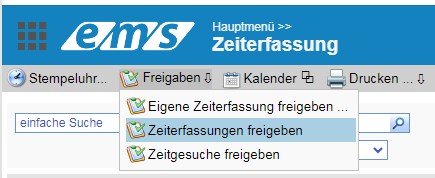
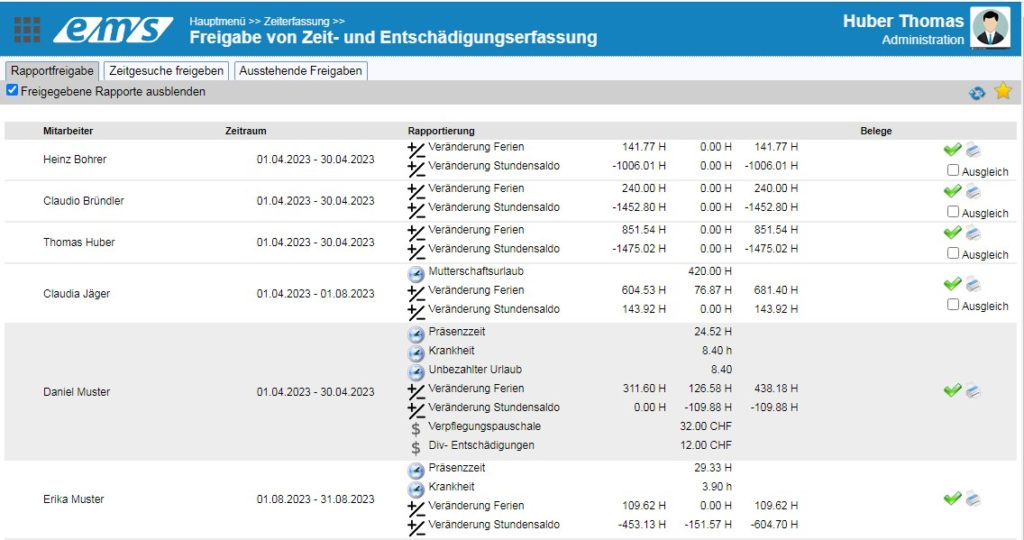
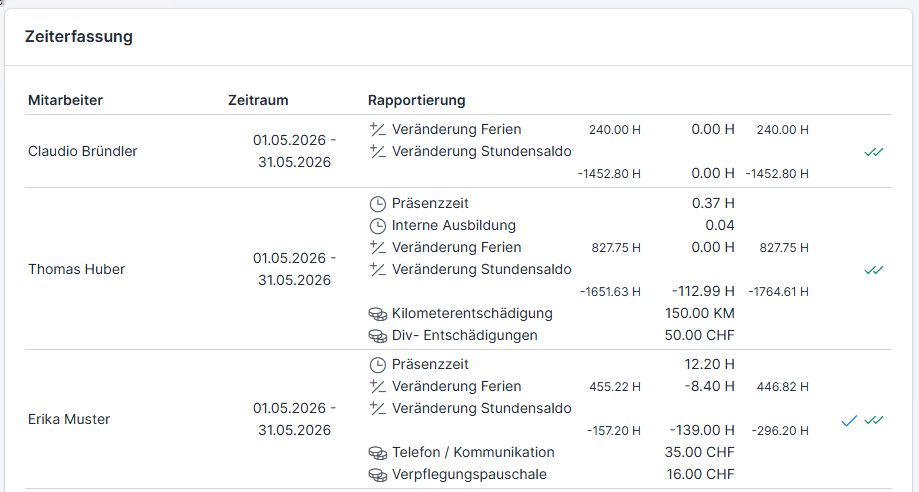
Under Time Tracking → Approvals → Approve Time Entries, all employees for the current period are displayed. Overdue approvals are hidden—these are listed without data in the “Pending Approvals” tab.
Please pay attention to the time period listed before the employee’s name, as this list also includes former employees with unresolved time reports. (For more information on how to delete time entries for former employees, see the following guide: Employee Termination)
Web 3.0 #

Option 2 – View an Employee’s Balances as of the Previous Day #
Web 2.0 #
Under Time Tracking → Open Employee Profile (tap the pencil icon on the right) → Time Requests → Current Hour Balance, you’ll find each employee’s current vacation and hour balances as of the previous day.
For comparison, the balances as of the end of the most recent reported period and the projected balances as of year-end (based on upcoming time requests) are also shown here.

Web 3.0 #
Under Time Tracking → Open Employee Profile (double-click the row / three-bar icon → Edit) , you ‘ll find each employee’s current vacation and hour balances as of the previous day.
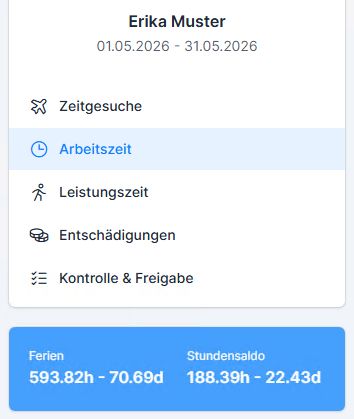
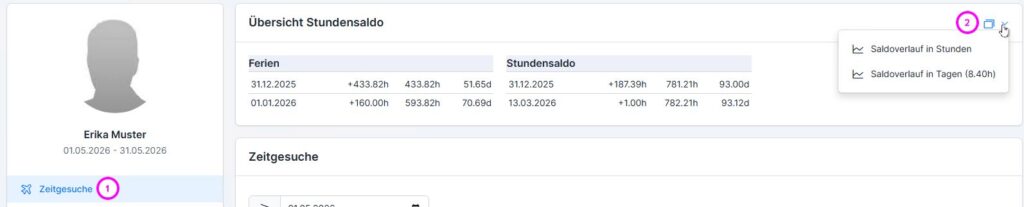
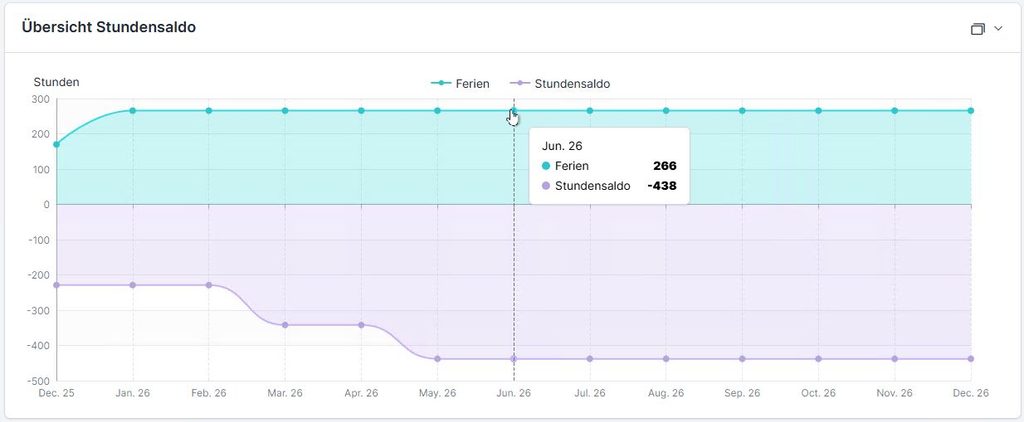
You can find detailed information about vacation and hour balances in the ” Time Requests ” tab (1). Here, you can switch between three views (2):
- Sad Lover Timeline in Hours
- Balance History in Days (_.__ h)
- Reservation Details (List)
Option 3 – Reports #
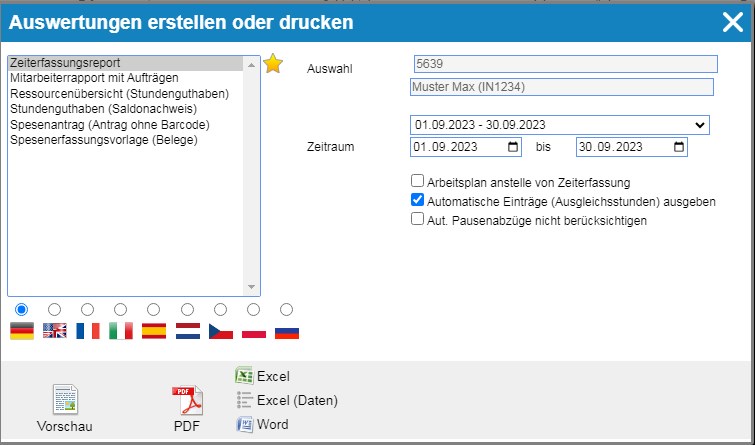
The balances can also be found in the following reports (depending on the time period selected in the screen):
Web 2.0 #
Web 3.0 #
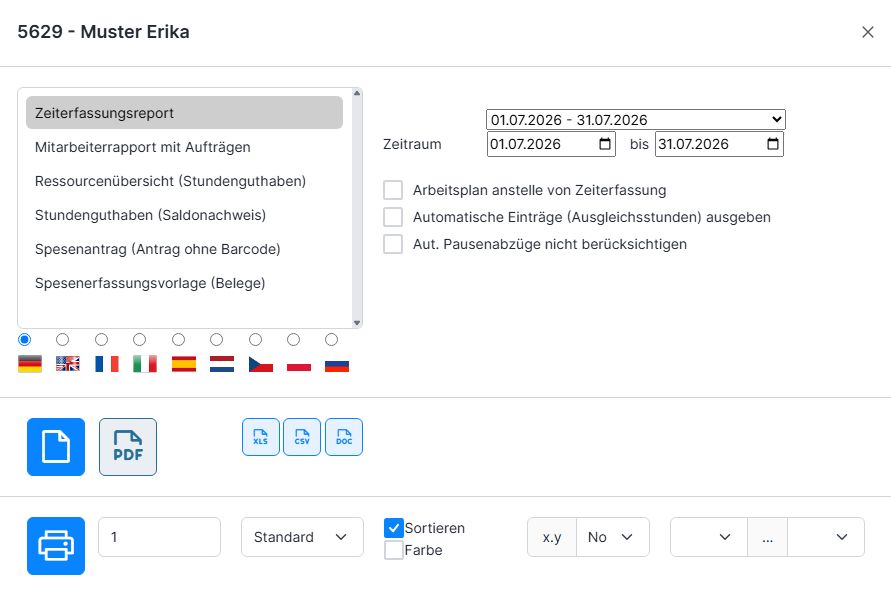
Time Tracking Report #
The time tracking report contains data on time and expense entries for the selected time period. The values for the time accounts are listed at the bottom, along with comparative values for the day before and the day after the time period, expressed in hours (H) and days (D).

Hour Credit (Balance Statement) #
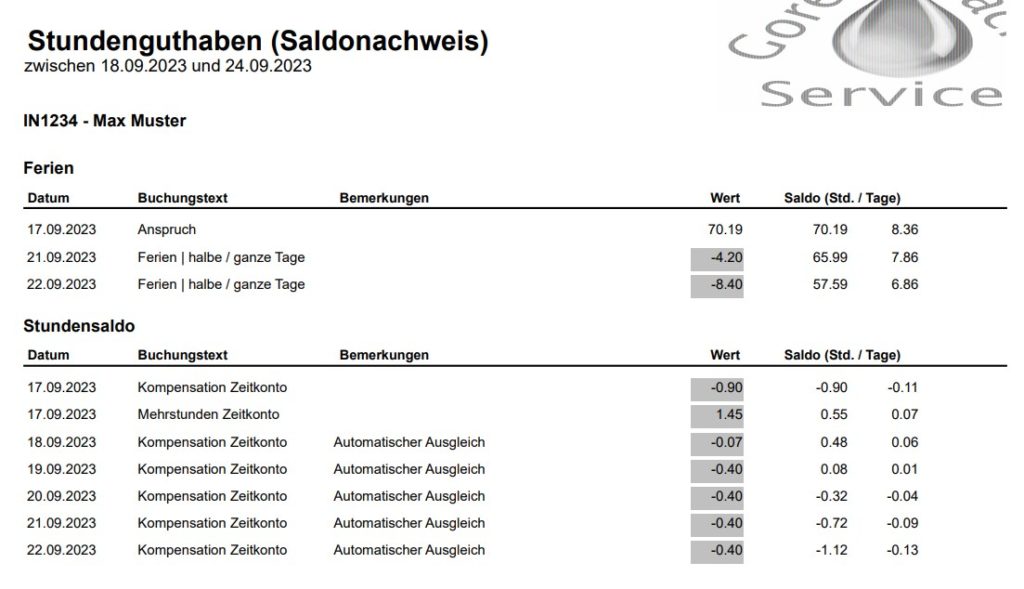
The “Hour Credit (Balance Statement)” document shows the daily change in balance for the selected time period: Date – Time Type – Value (Number of Hours) – Balance as of the date in hours and days.
- Vacation Balance: Vacation entitlements (created by the system administrator) and all approved absence requests are taken into account
- Hour Balance: Daily Change in the Flexible Work Schedule Account