
The Rules Governing Time Credits #
These legal principles are set forth in the Swiss Code of Obligations (OR).
- Duration: At least 4 weeks of vacation. Until the employee reaches the age of 20, at least 5 weeks of vacation. — Art. 329a, paragraph 1
- If an employee joins or leaves the company during the year, the vacation entitlement is calculated based on the duration of the employment relationship. — Art. 329a, paragraph 3
- Two weeks of vacation must be taken consecutively. — Art. 329c, paragraph 1
- The employer determines the timing of the vacation, while taking the employee’s preferences into account. — Art. 329c, paragraph 2
- Vacation time may not be paid out during the term of employment. — Art. 329d, paragraph 2
- Vacation time does not expire at the end of the year. The right to vacation time does not expire until after 5 years. — Art. 128, paragraph 3
Additional laws regarding vacation time (e.g., reductions) can be found in the Swiss Code of Obligations (OR).
Two ways to enter time entries into the system #
- Automatic Entitlement Determination
- Manually Entered Claims
We recommend that you always use the automatic claims . Only corrections should be entered manually .
As the name suggests, automatic entitlements are calculated by the system itself. The entitlements are activated in the employee’s time tracking.

Automatic claims are also displayed in the list of claims:

Set Up Automatic Claims #
To save the annual entitlement templates, open x2: Time Tracking → Settings (Tools icon in the upper right) → Hour Credit tab → Switch to version x3; x3: Time Tracking → Advanced Menu / Three-dot Menu → Master Data → Recurring Time Entitlements (Vacation Entitlements) section.
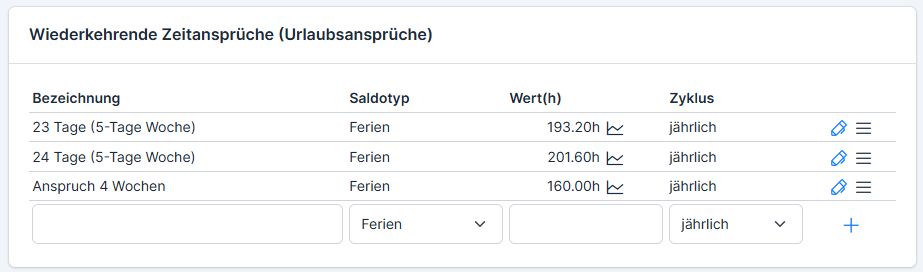
- Description: e.g., 4-week entitlement / 25-day entitlement
- Balance Type: Vacation Days for Vacation Entitlement
- Value in hours (vacation days * 100% of a workday)
- Frequency: annually for vacation entitlement
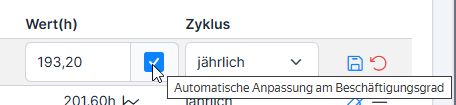
Entitlements are calculated based on 100% employment and are automatically adjusted downward for part-time work ( to do this, the “Automatic adjustment based on employment level” checkbox must be selected—otherwise, the value is applied as is, regardless of the employment level).
If an employee joins or leaves during the year, the system automatically reduces the entitlement based on the duration of the employment relationship.
IMPORTANT! Accrued annual leave cannot be deleted! Changes to entitlements are only possible if they have not (yet) been assigned to any employees; otherwise, this may lead to errors in vacation entry!
Enable / Assign Automatic Vacation Entitlements #
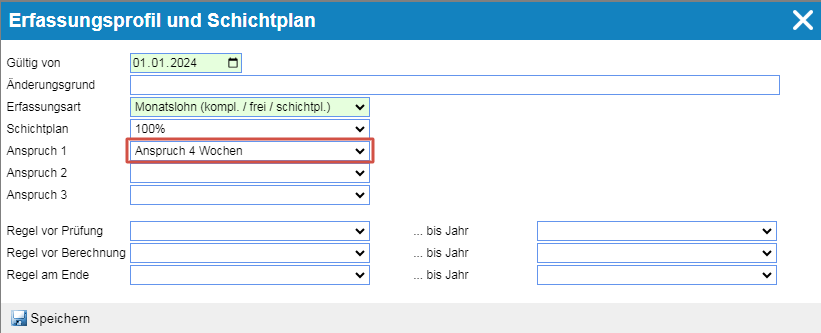
For new employee profiles, the entitlement must be selected when setting up the entry profile. The calculated entitlement is automatically created based on the employment relationship.

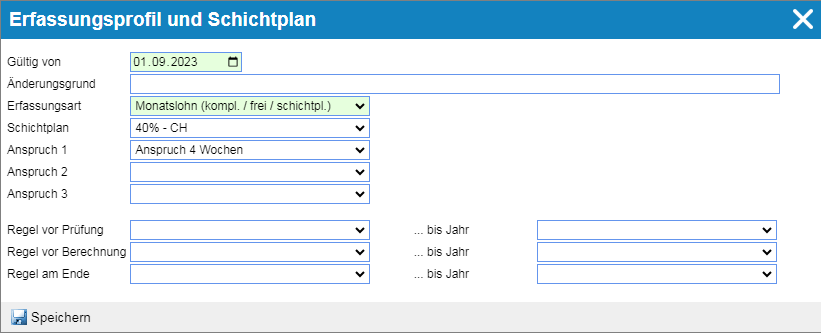
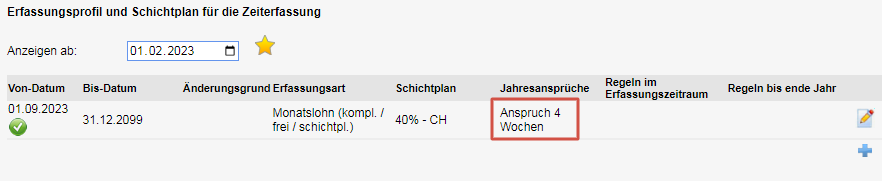
For existing employee profiles, the car allowance can be activated by creating a new entry profile. Click “Plus,” set the start date, enter all previous data, then select the allowance from the available options, and click “Save.”
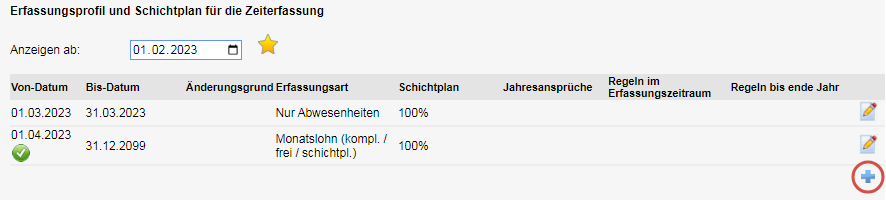
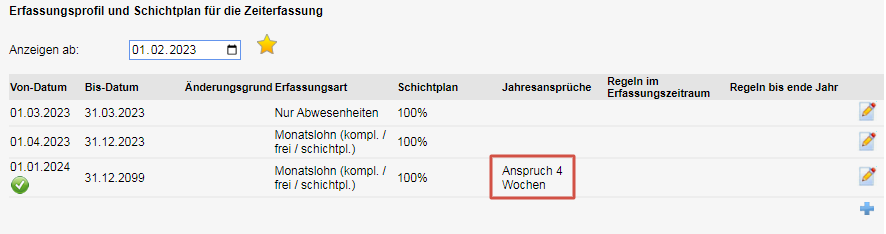
The calculated entitlement will then appear under “Time Balances.” From now on, only corrections need to be made.

Manual Claims and Corrections #
Manual claims can be entered directly into the list

When making a correction, you must specify, above all, the date, the “Vacation/Hour Balance” wage type group, and the hourly rate.
Paid overtime can be recorded as an hourly balance adjustment: the amount is entered with a minus sign, and the hours specified for that date are thus deducted from the hourly account. This deduction can be noted in the comment field: Overtime paid / Date.


Reduction of Entitlements Upon Resignation #
More about employee separation: Employee separation
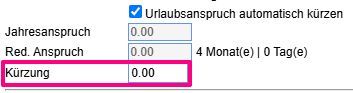
If automatic vacation entitlement calculation is enabled for the employee, the value 0.00 is displayed in the ” Reduction ” field upon termination.
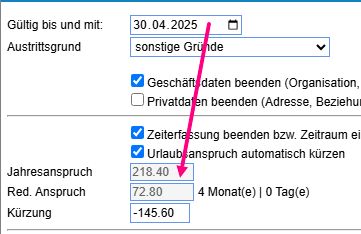
If any manual entitlement entries were recorded during the current year, they will be automatically reduced upon termination.

Summary Table of Entitlement and Correction Entries #
If manual entitlements and corrections need to be made on a large scale, you can use the overview found under Time Tracking → Advanced Menu / Three-Dot Menu → Settings → Hour Credit tab → Personal Entitlements selection.
Here you can see all entries that can be added (above the list using the plus icon), edited, or deleted.
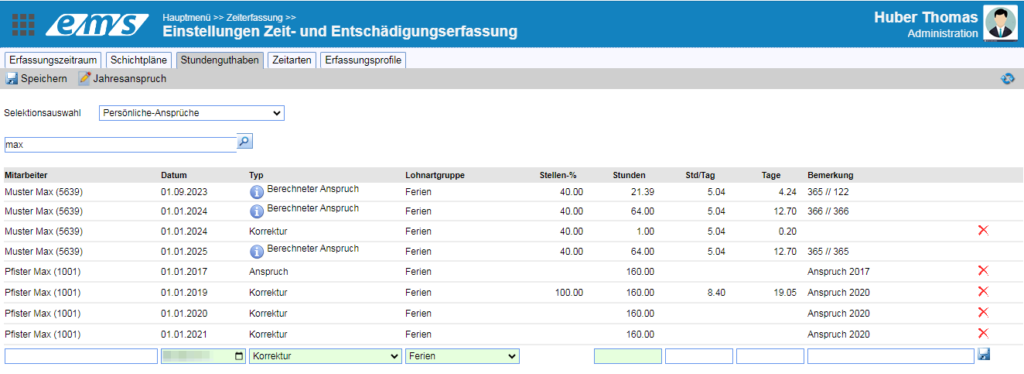
After making the changes, click ” Save .”
Calculation Method: #
The law always refers to “vacation weeks.” The number of vacation days that such a week corresponds to depends on the employment relationship—more specifically, on the number of workdays per workweek.
EXAMPLE
Let’s take as an example a company that offers 4 weeks of vacation per year. An employee who works 5 days a week year-round is entitled to 4 weeks of vacation * 5 workdays/week = 20 vacation days
If an employee joined or left the company during the year, Swiss law requires that vacation entitlement be calculated based on the duration of the employment relationship. The law does not specify exactly how this calculation should be performed. In practice, there are two methods:
- For accounting purposes: For simplicity, every month is treated the same (30 days). The year has 360 days.
- Exactly: The duration of the employment relationship in days is counted precisely and compared to the total number of days in the year.
Since 2021, EMS has only used the exact method for calculations.
Specifically, the vacation entitlement for an employee starting on April 1st would be 275 days (April 1st to and including December 31st) / 365
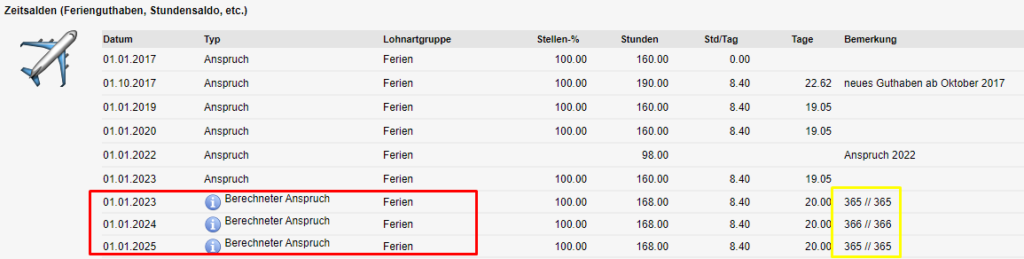
In the area highlighted in yellow, you’ll find the calculation (based on 365 out of 365 days in 2023).