
A supervisor’s approval can also be added if the employee has not yet added one. This makes it possible to finalize the report in the event of unplanned absences. It is also used when the employee does not enter the data themselves.
You can find additional instructions on the approval process for time requests and reports here: Approving Time Requests, Times, and Compensation (ems Web) – Instructions for Supervisors
Set Approval #
Approving Multiple Time Entries #
Version X2 #
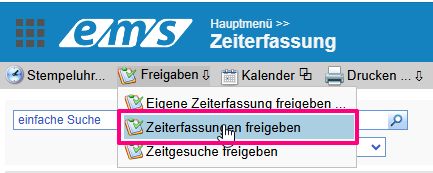
Time Tracking → Approvals → Approve Time Entries
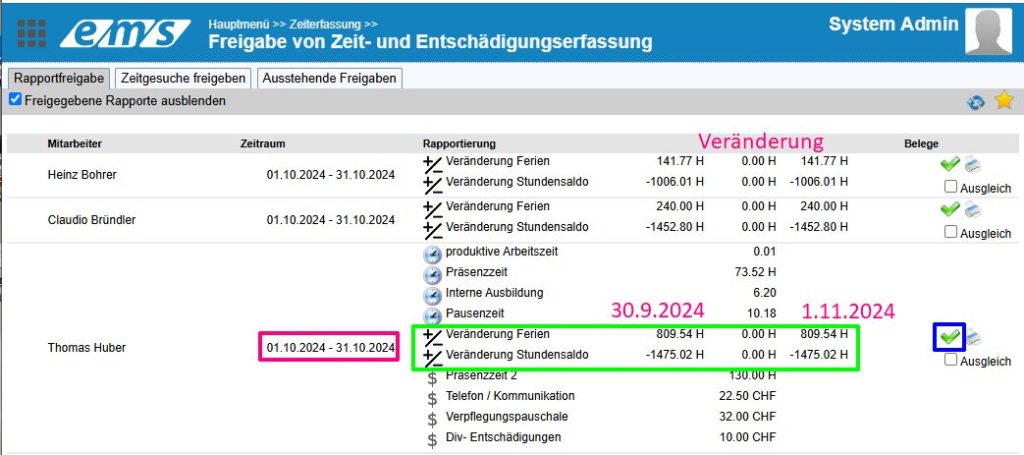
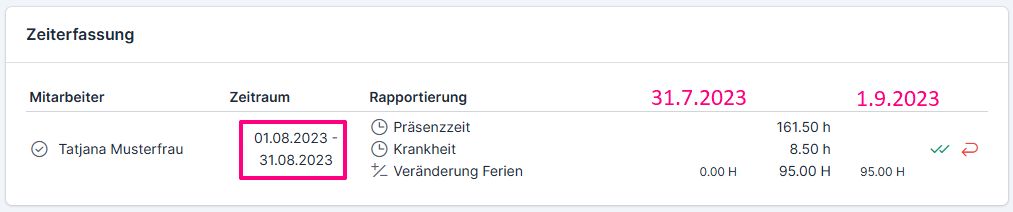
To approve the report, select the green “check mark.” You must approve each report individually.
The hourglass icon (yellow border) indicates that your employee has already completed the time entry.

You have the following options for reviewing the data. The middle column shows a summary of the entered values. Compensation documents are displayed if they have been scanned or photographed. If you’d like to view additional information, you can generate various reports directly by clicking the printer icon on the employee’s row.
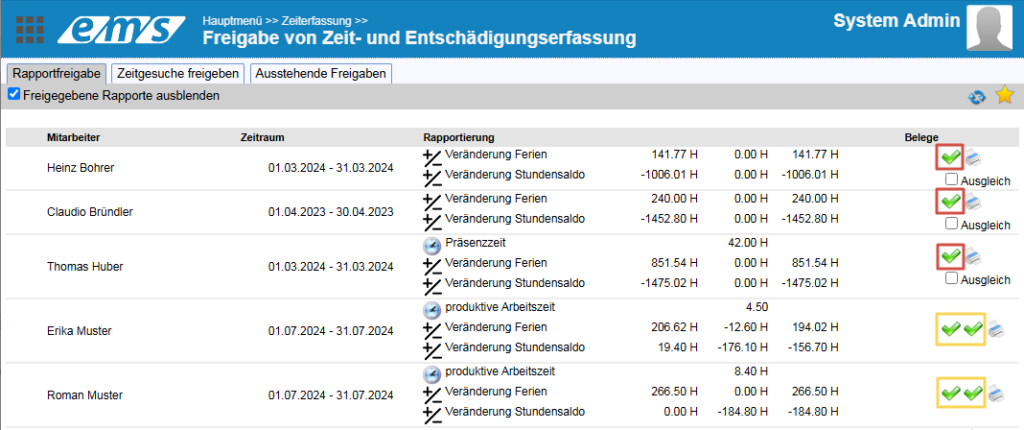
The two green ticks represent approvals by the project manager and the supervisor. They only appear for employees with the appropriate authorizations.
Version X3 #
Time Tracking → Approve and Finalize Time Tracking and Compensation
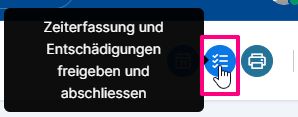
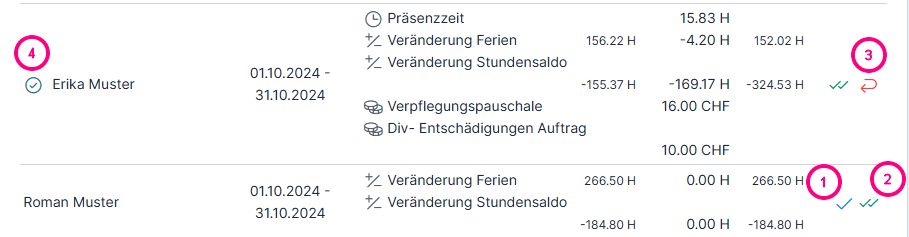
The approval list for time entries allows you to:
- to approve the time tracking as a project manager;
- to approve the time entries as a supervisor;
- Reject the time entry, stating the reason (so that the employee can make the necessary corrections)
Reports approved by the employee are marked with a green check mark (4).
Approval of Time Entry #
There are two ways to approve an individual employee’s time entries:
1. Employee Profile → Time Tracking tab → Active Tracking Period → Three-dot menu → Approve Time Tracking
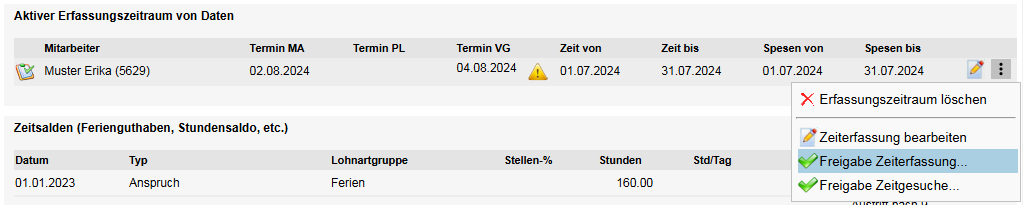
2. Time Tracking → “Daily View” or “Weekly View” tab → Approval

In both cases, the authorization screen appears. The screen contains the account data as well as the information and warning message about time recording. Time recording can only be released after all errors have been rectified (e.g. time entry not completed, no target hours in the shift plan, etc.).
- Finalize – Approve the time entry
- Revoke Completion – The approval is revoked
- The system administrator can revoke both their own approval and the employee’s approval.
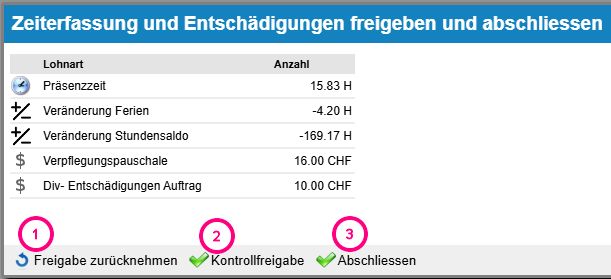

Up to 3 icons may appear (depending on permissions): 1 – Approval by the employee, 2 – Approval by the project manager (if enabled), 3 – Approval by the supervisor
Approval Status #
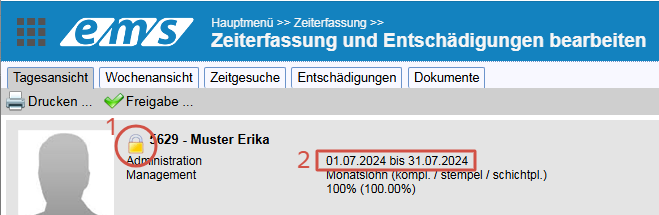
After time tracking is locked, a padlock (1) appears in the employee profile, indicating that time tracking is locked for the specified period (2). To make any changes during this tracking period, the lock must first be removed.
Approved reports are marked with a green checkmark in the employee list in the time tracking system. The icon appears in the column for the person who approved it (Approval Employee, Review Project Manager, Final Approval Supervisor).
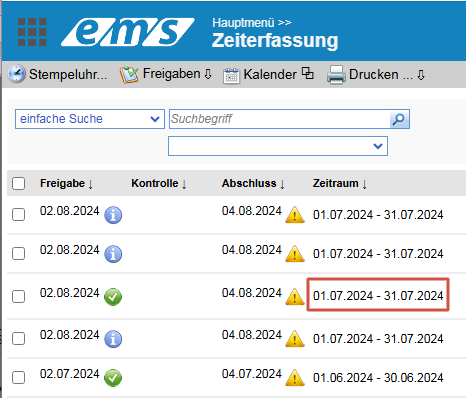
- The “i” icon indicates that the deadline for the employee to stamp the visa has passed.
- The exclamation point icon inside a yellow triangle (X2.0) / the hourglass with the date in orange (X3.0) indicates that approval from the project manager/supervisor is overdue.


All of these symbols refer to the specified time period (in the red box) for the respective employee.
Once the supervisor has approved the report, the system automatically switches to the next reporting period (week or month) overnight.
Visa Revocation #
You can find out how to have your visa revoked here: Visa Revocation