
Many companies distinguish between employees who are only allowed to clock in and those who are allowed to manually record and edit their hours.
Previously, the “stamp” / “free” setting in the time tracking profile was used for this purpose. This setting is now implemented via the “Manual Entry” function.
Permissions for manually entering and editing times #
Permissions for manual time entry are managed directly through the permissions settings. This allows you to specify on a per-user or per-role basis whether manual changes are permitted.
Manual entry via the authorization role #
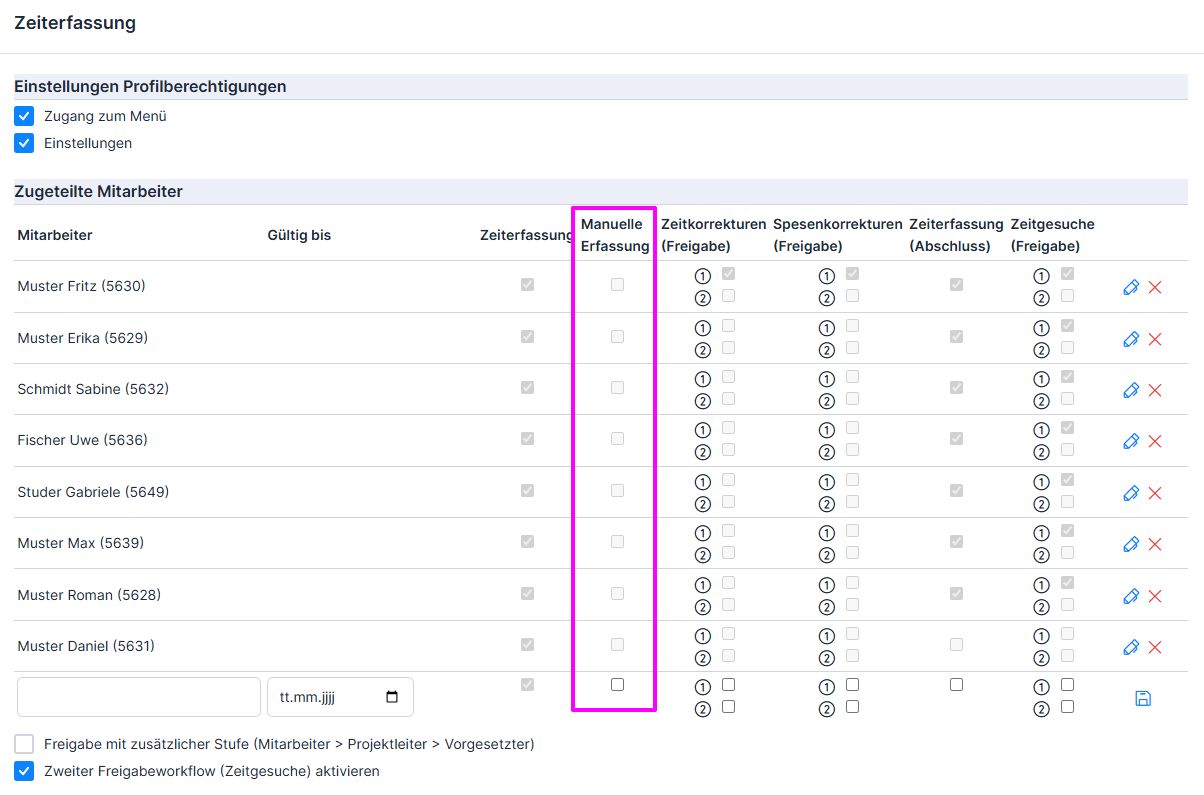
Manual data entry is enabled on a group basis via the authorization role (under “Assigned Employees” → “Manual Data Entry” —specifying whose time entries the role administrator is authorized to edit).
Manual entry via the employee profile #
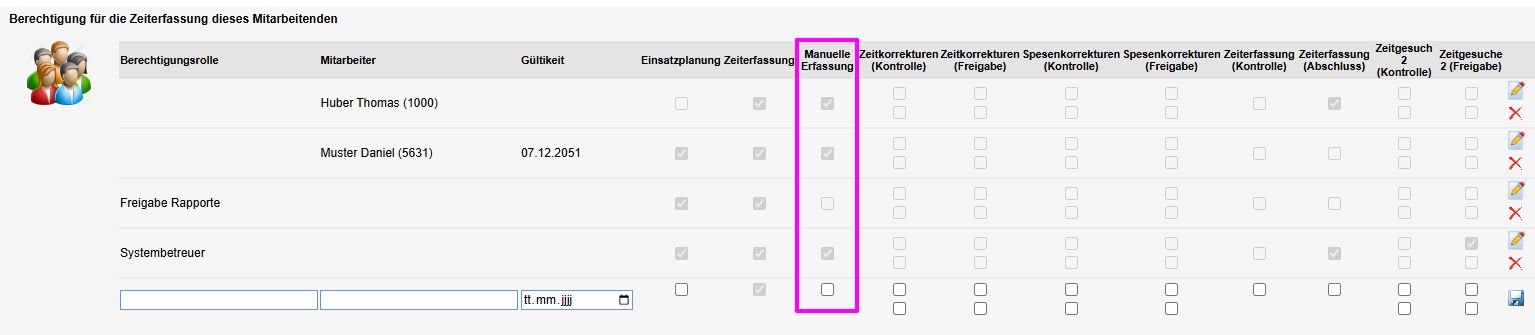
To enable the manual time entry permission individually , go to the employee’s profile → Time Entry tab → Permissions for this employee’s time entry:
- “Employee” column: The employee may edit their own time entries (enter, correct, and delete times manually);
- “Authorization Role” column: Role administrators are allowed to edit the time entries for this employee (whose employee profile is open)—this checkmark also appears in the role itself
Workflow for Correcting Time and Expense Entries #
In many companies, employees are only allowed to clock in and out and enter expenses. However, if a correction is necessary (e.g., missing or incorrect entries), it can still be recorded. However, the change is not applied immediately; it must first be approved. This eliminates the need to laboriously notify a supervisor of every correction, as notifications are sent automatically.
Specifically, this means:
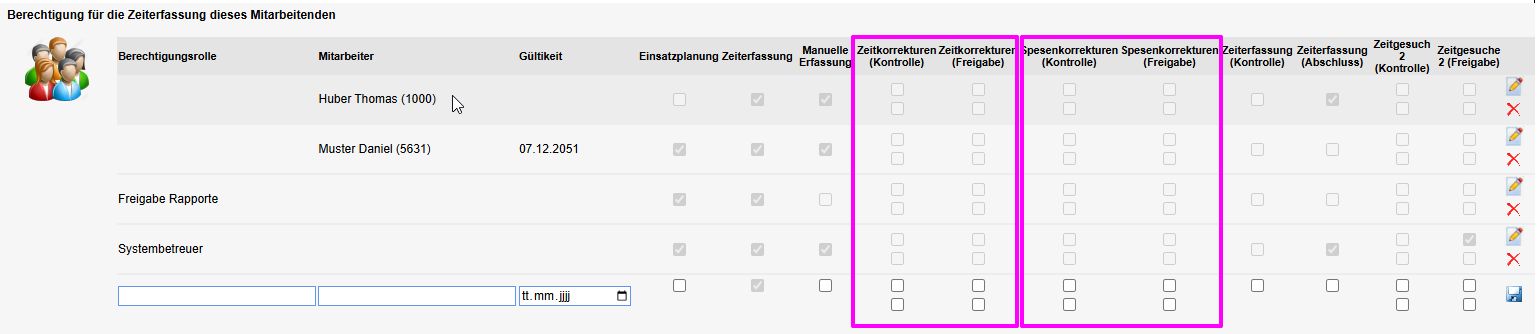
- Manual entries, changes, or deletions of time entries and expense reports automatically trigger an approval process.
- The correction must first be reviewed and approved by a supervisor (“Approval”).
- Optionally, a two-step workflow (“Review”) can also be enabled. In this case, additional approval by project management is required.
By default, this option is not enabled, and no permissions are set.
Separate Approval of Different Times and Expenses #
In some companies, a distinction is made between time entries and expense reports, which are reviewed and approved by different departments. For example, vacation requests are approved by supervisors, while sick leave and accident reports must be approved by the Human Resources department. In such cases, ems offers the option to distinguish between two types of time entries and reimbursements.
Step 1: Assign time and compensation types to Group 1 or Group 2 in the settings.
Time Tracking → Three-dot menu in the upper-right corner → Settings → Time Types → Switch to the old layout → Time Types tab → Wage and Time Types section
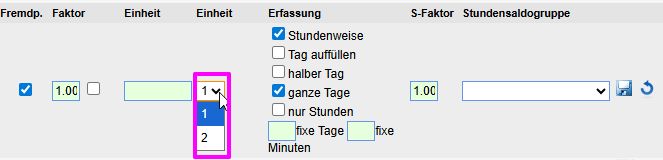
Time Tracking → Three-dot menu in the upper-right corner → Settings → Compensation Types


Step 2: Enable time and compensation types in the corresponding authorization roles.
Employee Management → Employee List → Three-dot menu in the upper-right corner → Users & Permissions → Permission Roles
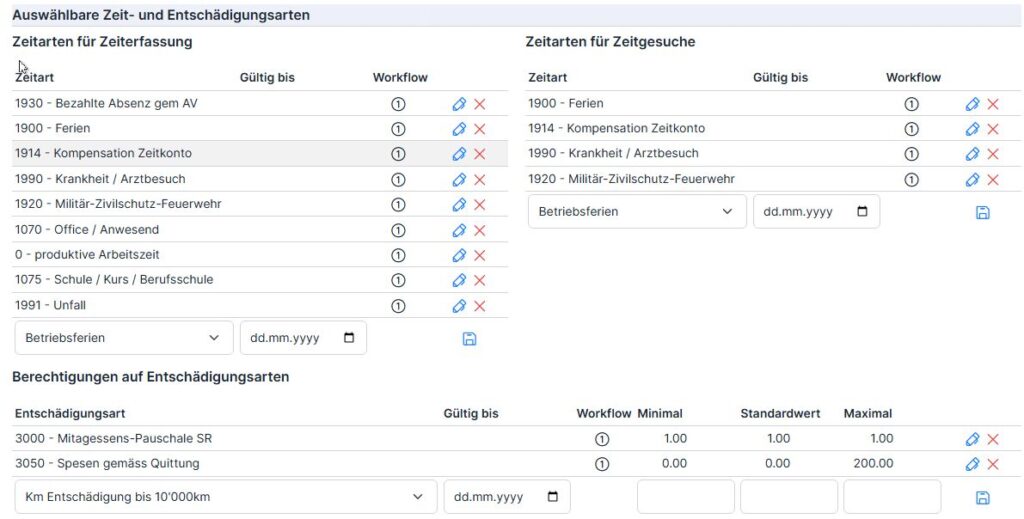
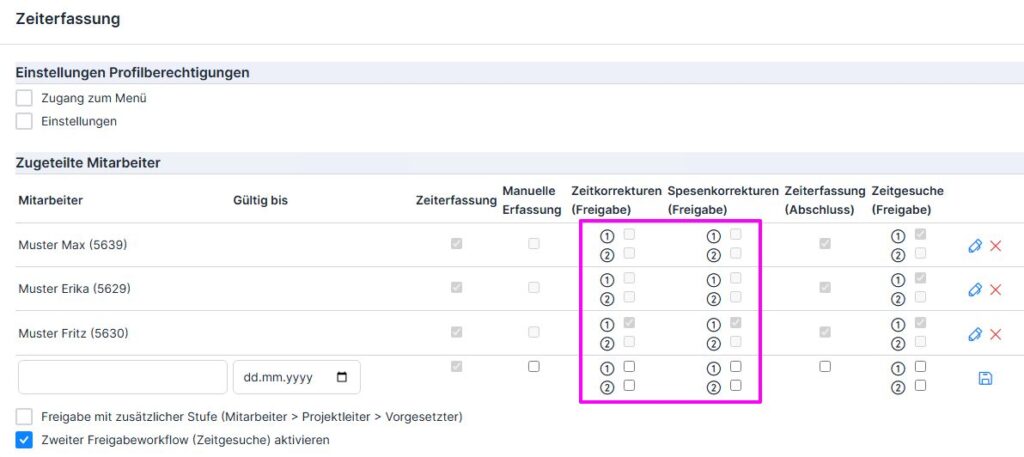
Step 3: Assign time and expense categories to specific employees (Role administrators are then authorized to approve the times and expenses of the defined type for the assigned employees).
But first, enable the second approval workflow by checking the corresponding checkbox (Employee List → three-dot menu in the upper-right corner → Users & Permissions → relevant permission role → Human Resources Management tab → Time Tracking section → below the list of assigned employees).

Depending on whether the role administrator is authorized to approve times or expenses of Type 1 or Type 2, we check the checkboxes next to the assigned employees for “1” or “2.”
For information on how to immediately correct time entries and expense claims, as well as how to approve or reject them, please refer to the other guide: Correcting Time Entries and Expense Claims, Followed by Approval