
What is service time? #
Time and labor tracking is used to assign work performed to an order, project, or cost center.
The performance time answers the question:
For which order, project, or cost center was the work performed?
Working hours, on the other hand, show when and for how long an employee worked.
Depending on the company’s configuration, working hours and productive hours can be tracked together or separately.
A Comparison of Working Hours and Productive Hours #
| Working Hours | Performance Time |
|---|---|
| Shows when and for how long work was performed | Shows what the service was provided for |
| Used, among other things, to determine scheduled hours and time balance | Used for performance reporting and analysis |
| Can be recorded as attendance time | Is assigned to an order, project, or cost center |
| Can also be recorded without an order | Requires the appropriate account assignment depending on the time type |
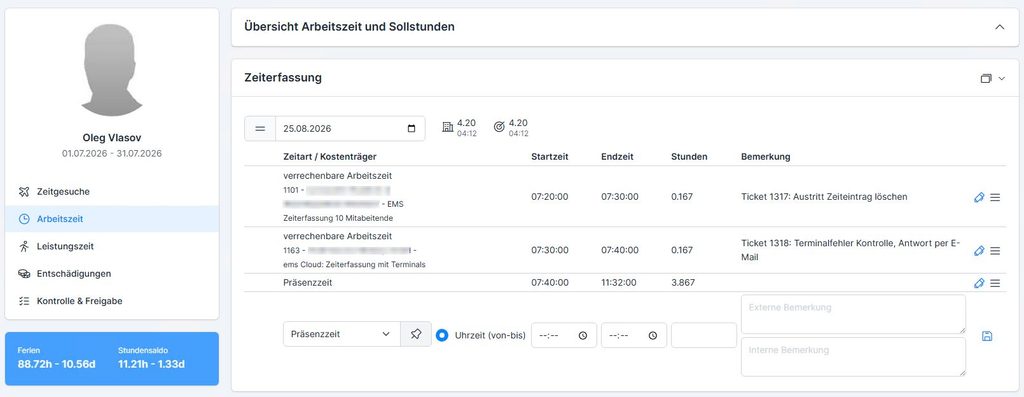
Example:
An employee is present from 8:00 a.m. to 5:00 p.m. The working hours record covers their entire workday. In addition, the work performed can be allocated to various orders or cost centers.
View Service Time #
- In the navigation pane, open ” Time Tracking.”
- Select the employee in question.
- In the time tracking section, select ” Work Time.”
- Select the date you want.
The overview displays the work hours recorded for that day.
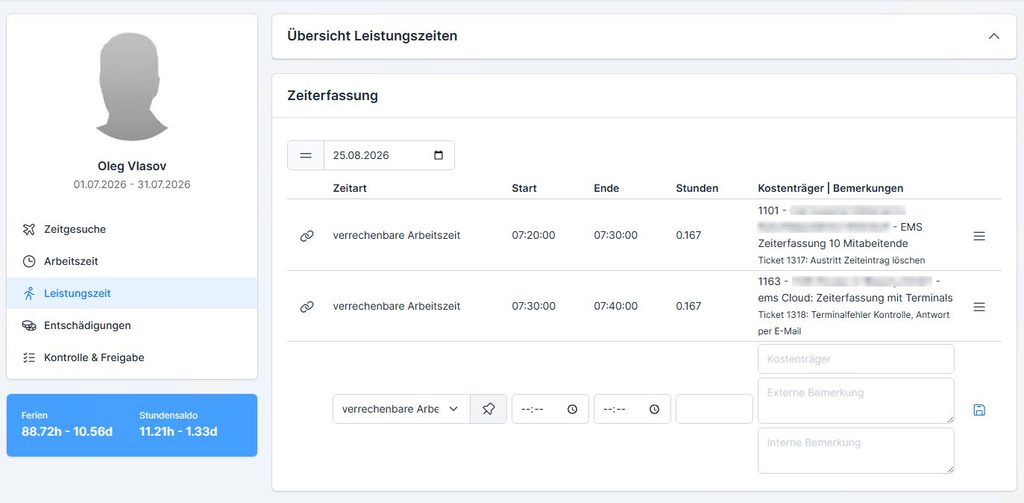
In the overview, you will find the following information, among other things:
- Time Type – for example, “billable work time”
- Start and end of the recorded time
- Hours – Duration of the entry
- Cost Object – Order, Project, or Cost Center
- Comments – Additional Information About the Entry
Record Work Hours #
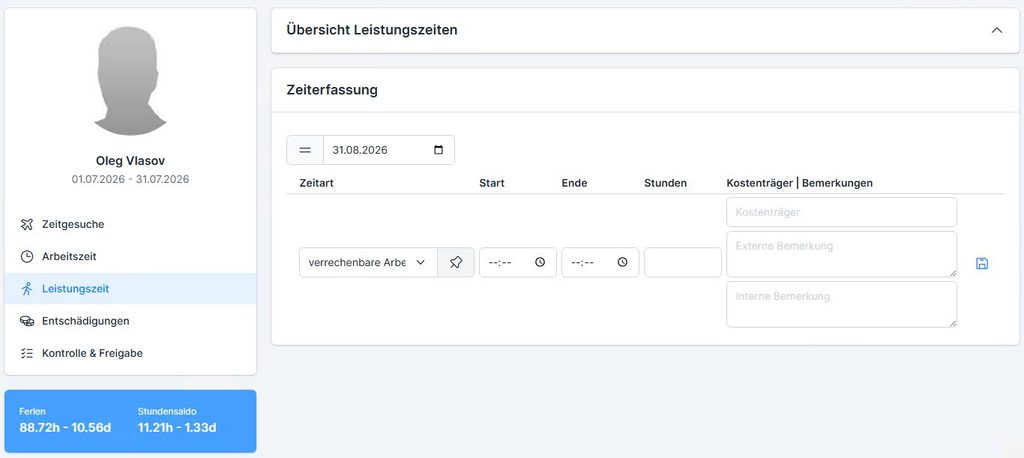
A new service period can be entered directly in the ” Service Period ” section.
1. Select a time type #
First, select the desired time type, for example:
billable work time
The time types available depend on your company’s configuration.
2. Select a payer #
Select the appropriate cost center.
Depending on the configuration, this could be, for example:
- Sales Order,
- a project or
- a cost center
act.
For an order-based service, select the corresponding order.
3. Track time #
Enter the start and end times for the service.
Alternatively, depending on the configuration, a duration can also be recorded.
4. Add a comment #
If necessary, you can enter an external or internal comment.
This allows additional information about performance to be documented.
5. Save the entry #
Save the entry you’ve entered by clicking the Save icon.
The entry will then be displayed in the overview of service times.
Edit Service Time #
You can edit existing time entries—provided you have the necessary permissions.
- Find the entry you’re looking for in the list.
- Open the entry for editing.
- For example, change the time type, cost object, start or end time, or a comment.
- Save the changes.
Which details can be changed depends on the applicable permissions and the configuration.
Working hours and time worked may differ #
The total number of service hours does not necessarily correspond to the total number of working hours in every case.
In the case of separate service recording, the following situation may arise, for example:
Working hours: 8 hours
Service Period:
- 5 hours on Assignment A
- 5 hours on Assignment B
- Total: 10 hours
In this example, the working time remains at 8 hours. The work time may be longer if work performed is allocated to multiple orders, projects, or cost centers.
Note: Whether such a deviation is permitted depends on the settings for time types and the data entry profile.
Real-world example #
An employee works a total of 8 hours in a day.
His working hours are recorded in ” Working Hours “:
- 8:00 a.m.–12:00 p.m.
- 1:00 p.m.–5:00 p.m.
In addition, the employee tracks their work on various assignments:
- 4 hours → Assignment A
- 3 hours → Assignment B
- 1 hour → internal cost center
This makes two pieces of information visible separately:
Working Hours:
How long did the employee work?
Service Period:
For which orders, projects, or cost centers was the service provided?
Important to Know #
- Working time refers to the time spent working or being present at work.
- Activity time refers to the activity reported against an order, a project, or a cost center.
- Depending on the configuration, service time can be recorded in addition to or separately from working time.
- Depending on the time type, an account assignment is required for each period of service.
- Working hours and productive hours may total different amounts.
- The available time types and permitted entries are determined by the company’s configuration and authorizations.
Mnemonic #
Working Hours = How long have I worked?
Time Worked = What Did I Work For?