
The quick panels on the home page allow you to quickly track time and create time requests.
To learn how to enable Quick Panels, see here: Personal Layout Settings
Time Tracking Panel #
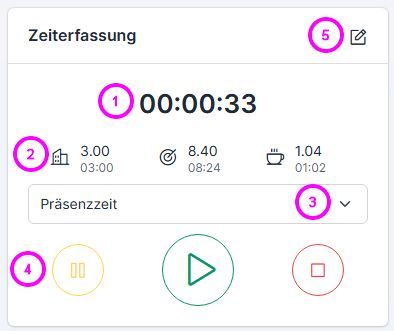
The time tracking panel is a virtual time tracking terminal.
The first line always displays the most recent data entry (1). Below that, the office hours, target hours, and break times are shown: for each, both the 24-hour/decimal time and the standard time in hours and minutes (2).
Only time types that can be recorded on an “hourly” basis can be entered using the Quick Panel (3). It is also possible to record “attendance time.”
Depending on the user’s permissions, the Pause, Start, and Stop buttons may be displayed (4).
To switch to full time tracking, click the “Update” button (5).
Job Postings #
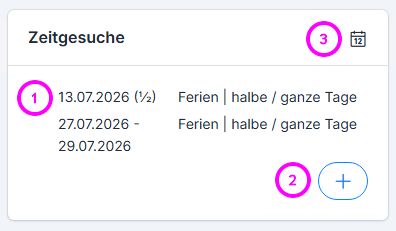
The Time Request Panel displays the pending time requests (1). To create a new request using the “Plus” button (2), you will be redirected to the time request window.
The next time request is displayed on the first line. If it has been approved, it is marked with a green check mark.
Clicking on the calendar opens the absence calendar (3).