
Set Approval #
The report can only be approved by the employee himself or his supervisor. It is not possible for one employee to enter their own time for another employee. The report approval icon is automatically hidden. Once the self-approval is set, the time entry can no longer be modified. However, the approval can be revoked while the entry period is still open.
Go to your personal data entry screen. To do this, click “Time Tracking” on the home page.
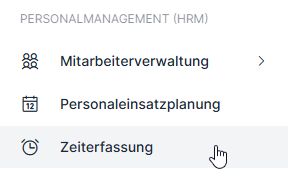
The list that appears may include multiple employees (if other employees have been assigned to you). However, select yourself and double-click on the row or click “Edit ” in the three-bar menu. If you do not appear in the list, please contact the department responsible for time tracking at your company. In this case, you do not have the necessary permissions. The same procedure applies if you do not see the “Time Tracking” feature on the home page.

Web 2.0 #
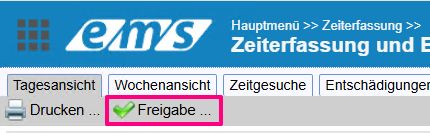
To set your own visa, you now have the option to use the “Approval” function (1) to set the visa (in both the daily and weekly views).

Web 3.0 #
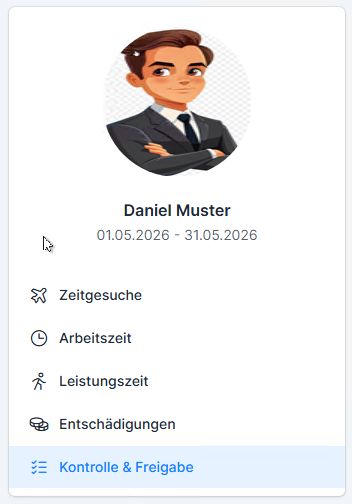
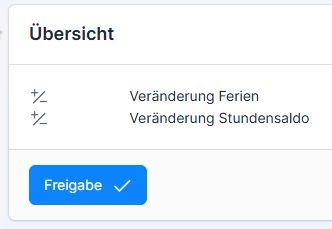
WEB X2.0: When you click “Approve,” a detailed check of the data is performed (all personal data is recalculated in the background). The resulting screen displays account balances as well as informational and warning messages. This can be used for verification purposes (close the screen after verifying—the data will not be released).
Approval is granted only after confirmation in the approval screen.

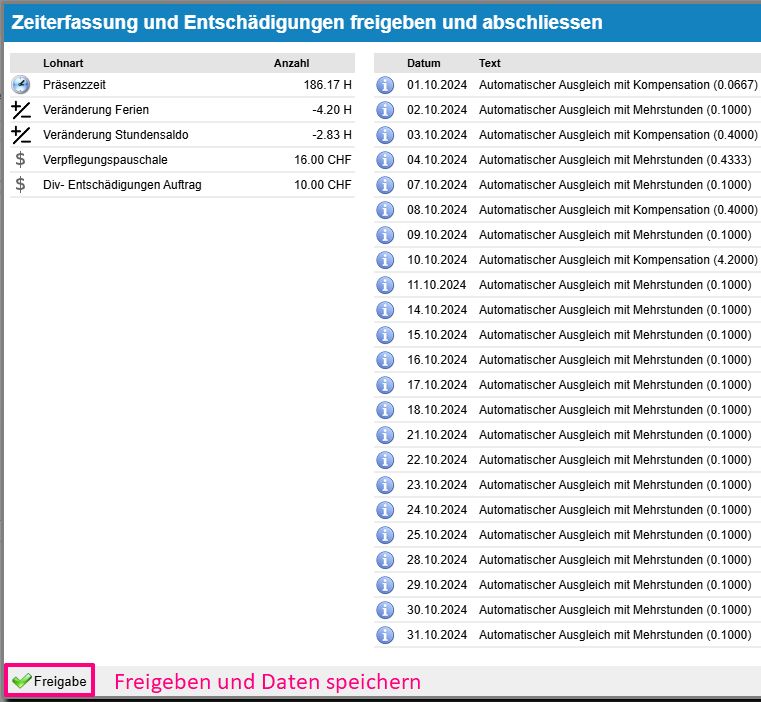
Please note that the open period is always selected by default. You can change the period in the employee profile: Time Tracking tab → Active Tracking Period → Edit → Time/Expenses From/To → Save.

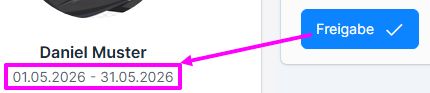
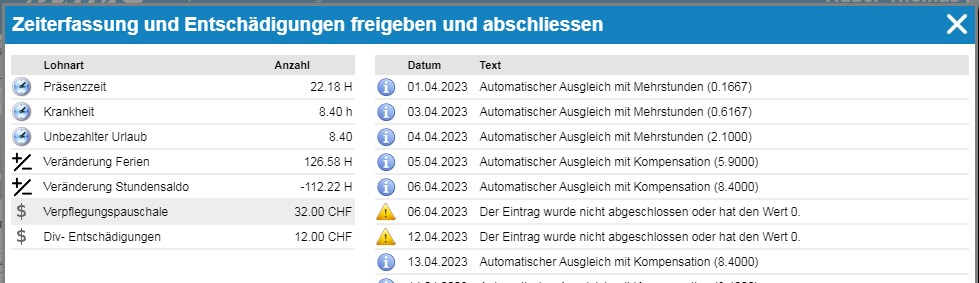
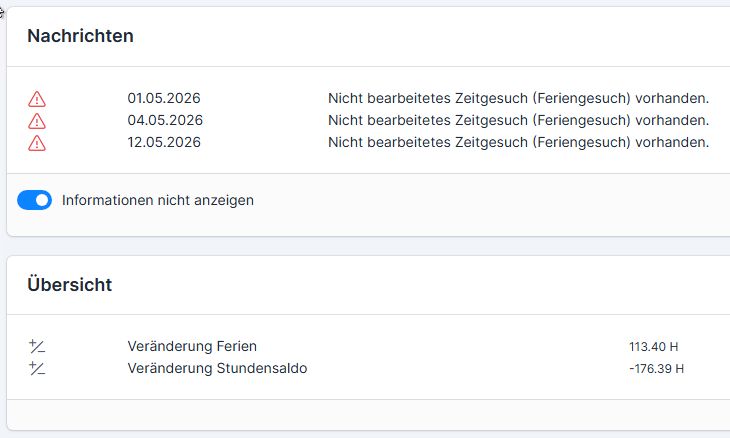
During the review or approval process, error messages and information may be returned. If an error message is returned, the data will not be approved until the errors are corrected. A list of error messages and possible solutions can be found here: Warning and Error Messages During Approval
Web 2.0 #
Web 3.0 #
Approval Status #
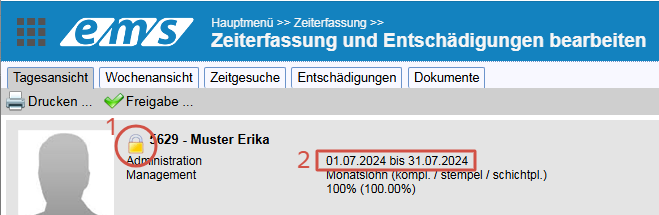
After time tracking is locked, a padlock (1) appears in the employee profile, indicating that time tracking is locked for the specified period (2). To make any changes during this tracking period, the lock must first be removed.
Approved reports are marked with a green checkmark in the employee list in the time tracking system. The icon appears in the column for the person who approved it (Approval Employee, Review Project Manager, Final Approval Supervisor).
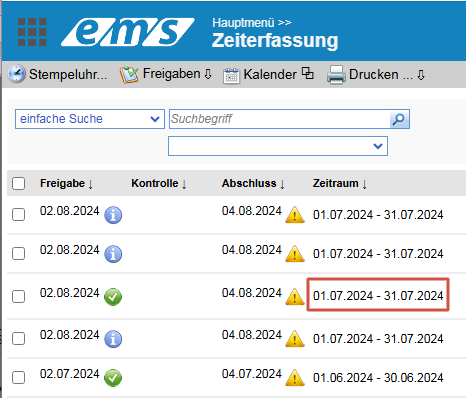

- The “i” icon / hourglass indicates that the deadline for the employee to stamp the visa has passed.
- The exclamation point icon inside the yellow triangle / the hourglass indicates that approval by the project manager/supervisor is overdue.
All of these symbols refer to the specified time period (in the red box) for the respective employee.