Skip to content
ems Support Portal

Support Portal

  • English
    • German
Kundenportal
Kundenportal
ems Support Portal
  • Chat
  • Dokumentation ems System
  • Downloads
  • Privacy Policy
  • Quick Download Button
  • Register
  • System status

Getting Started For Users

7
  • Basic Operation of the ems Time App
  • Basic operation of ems Mobile
  • Basic operation ems Web
  • Using time recording
    • Time recording terminals
  • Managing your user account
    • Article favorites
    • Set up and manage user account
    • Personal layout settings

Administration & Settings

14
  • Create checklists
  • Employee and user administration
    • User overview
    • Notifications
    • Create new employee profile
    • Authorizations (General)
    • Authorizations for employees
    • Store authentications in the ems system
  • System settings
    • Clients / Multiside
    • QR code and NFC for ems Mobile
    • Notifications
    • Text templates for notifications (e-mails)
    • Images, logos and symbols (icons)
  • Importing and exporting data
    • Exporting data
    • Importing data

News, Updates & Technology

25
  • ems licensing
  • Initialize and set up new system
  • New web layout X3
  • Time and data recording terminals
    • Protected: Technical information on terminals
    • Datafox Terminals
    • ems terminals (TT5, MT7)
  • Software installation
    • Install the ems Timekeeping app (time tracking) on your smartphone
    • Infrastructure requirements for the system
    • ems Installation Tool
    • Configure ems Server Tool
    • ems Mobile on the smartphone
    • ems Client
    • Protected: Presentation systems
  • Integrations & interfaces
    • Protected: API for RESSIS / ARVIS
    • User parameters
    • System parameters
    • Public web services
    • Interfaces
    • Protected: API access (Rest web service)
    • Protected: API for SUGB inspection app
    • Mailjet connection (for campaigns)
    • WooCommerce connection
    • 3CX telephone system
    • Set up your own e-mail server
    • Protected: API for ems Pos App

Time Tracking

36
  • Working time recording
    • Record and Edit Service Hours
    • Time Tracking (ems Web X3.0)
    • Track and Edit Time (ems Time App)
    • Manual Entry and Approval of Corrections (Set Permissions)
    • Record and edit times (ems Mobile)
    • Personal Hour and Vacation Balances (ems Web)
    • Approval of Your Own Time Tracking (ems Web)
    • Time recording (ems Web)
    • Time Tracking and Time Requests via Quick Panels (ems Web)
    • Hour and Vacation Balances (ems Web)
    • Hourly and vacation balances (ems Mobile)
    • Release of time recording (ems Mobile)
    • General warning and error messages
  • Absence management
    • Record and Process Time Requests (ems Time App)
    • Personal Hour and Vacation Balances (ems Web)
    • Enter time requests (ems Web)
    • Time Tracking and Time Requests via Quick Panels (ems Web)
    • Hour and Vacation Balances (ems Web)
    • Hourly and vacation balances (ems Mobile)
    • Enter and edit time requests (ems Mobile)
  • Bonuses and overtime calculation
    • Time Credit (Vacation, Flexible Work Hours)
  • Compensation
    • Record and Process Reimbursements (ems Time App)
    • Record Compensation (ems Web)
    • Record and process compensation (ems Mobile)
  • Share and Lock
    • Visa Revocation
    • Warning and Error Messages During Release
    • Canceling Approved Time Requests
    • Approval of time requests
    • Approval of Employee Reports
    • Error Messages When Approving Time Requests
    • Approving Time Requests, Time Entries, and Compensation (ems Web) – Instructions for Supervisors
    • Approving Time Entries (ems Time App)
  • Time Settings
    • Set Time, Wage, and Compensation Types
    • Time Credit (Vacation, Flexible Work Hours)
    • Break Policy
    • Target hours (target timetables / public holidays)

Customer & Address Management

13
  • Customer management
    • Customer networks
    • Enter new customer address (ems Web)
    • Manage customer addresses
    • Copy customer address
    • Difference between customer groups, properties, authorization roles and relationships
    • Authorization roles for customers
    • 3CX telephone system
    • Importing customer data
    • Mailjet connection (for campaigns)
  • Supplier management
    • Manage supplier addresses
    • Enter and edit supplier address
    • Authorization roles for suppliers
    • Copy supplier address

Orders & Sales

23
  • Quotation creation
    • Create and manage offers
    • Offer settings
  • Order management
    • Shift planning for the customer order (ems Web)
    • Enter new customer order
    • Time and compensation recording for the customer order (ems Web)
    • Order status, billing, order completion
    • Payment plan (recurring invoices)
    • Record material (ems Web)
    • Checklists for the customer order (ems Mobile)
    • Record services (ems Web)
    • Record material (ems Mobile)
    • Time and compensation recording for customer orders (ems Mobile)
    • Processing a customer order (ems Mobile)
    • Authorizations for customer orders
    • Checklists for the customer order (ems Web)
    • Record services (ems Mobile)
    • Completing the customer order (ems Mobile)
    • Create checklists
    • Clearing types
  • Point of Sale (POS) System
    • Process sales orders (via tablet – ems Mobile)
  • Marketing Campaigns
    • Campaign rules
    • Create marketing campaigns
    • Manage marketing campaigns

Procurement & Logistics

8
  • Product & Article Management
    • Special food labeling
    • Article bundles
    • Article variants
    • WooCommerce connection
    • Importing article master data and article prices
    • Manage articles
    • Article types
    • Create and edit articles

Finance & Accounting

6
  • Accounts payable management
    • Receive creditors via e-mail
    • Scan vendor invoices
  • Accounts receivable management
    • External recording (other software)
    • Delete or cancel invoices
    • Take over positions
    • Enter invoices

HR & Payroll

6
  • Employee administration
    • User overview
    • Employee resignation
    • Edit employee profile
    • Create new employee profile
    • Authorizations for employees
  • Payroll
    • Set up and adjust payroll accounting

Planning & Resource Management

5
  • Personnel deployment planning
    • Creating a mission entry
    • Views of resource planning (ems Web)
    • Operations planning overview (ems Mobile)
    • Planning groups
    • Authorizations for resource planning

Document Management & Administration

2
  • Outlook signature
  • Add documents via DragDrop
  • Dokumente
  • Time Tracking
  • Working time recording
  • Record and Edit Service Hours
View Categories

Record and Edit Service Hours

Ungefähre Lesedauer: 4 min lesedauer

What is service time? #

Time and labor tracking is used to assign work performed to an order, project, or cost center.

The performance time answers the question:

For which order, project, or cost center was the work performed?

Working hours, on the other hand, show when and for how long an employee worked.

Depending on the company’s configuration, working hours and productive hours can be tracked together or separately.


A Comparison of Working Hours and Productive Hours #

Working HoursPerformance Time
Shows when and for how long work was performedShows what the service was provided for
Used, among other things, to determine scheduled hours and time balanceUsed for performance reporting and analysis
Can be recorded as attendance timeIs assigned to an order, project, or cost center
Can also be recorded without an orderRequires the appropriate account assignment depending on the time type

Example:
An employee is present from 8:00 a.m. to 5:00 p.m. The working hours record covers their entire workday. In addition, the work performed can be allocated to various orders or cost centers.


View Service Time #

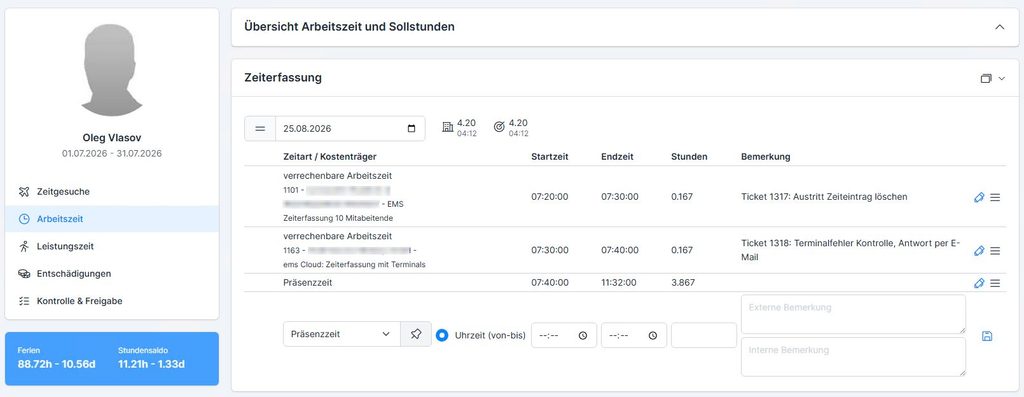
  1. In the navigation pane, open ” Time Tracking.”
  2. Select the employee in question.
  3. In the time tracking section, select ” Work Time.”
  4. Select the date you want.

The overview displays the work hours recorded for that day.
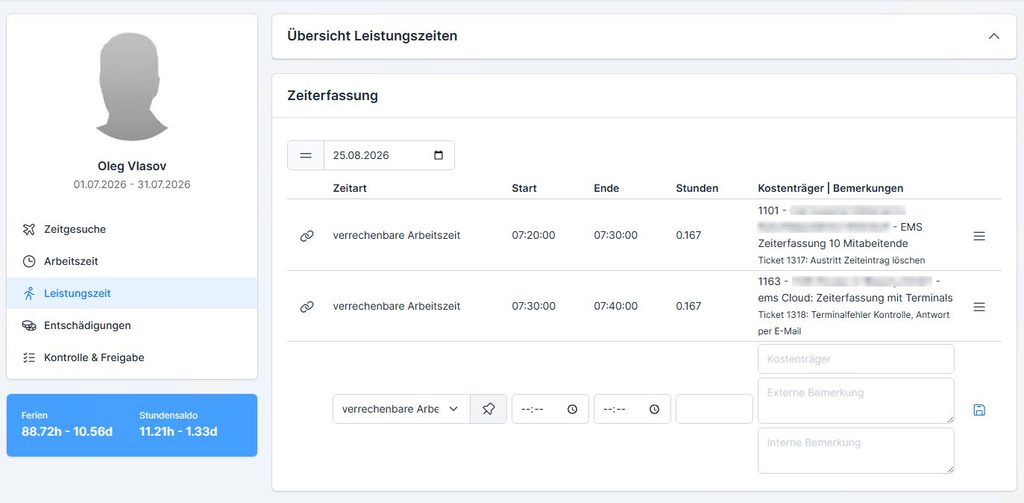
In the overview, you will find the following information, among other things:

  • Time Type – for example, “billable work time”
  • Start and end of the recorded time
  • Hours – Duration of the entry
  • Cost Object – Order, Project, or Cost Center
  • Comments – Additional Information About the Entry

Record Work Hours #

A new service period can be entered directly in the ” Service Period ” section.
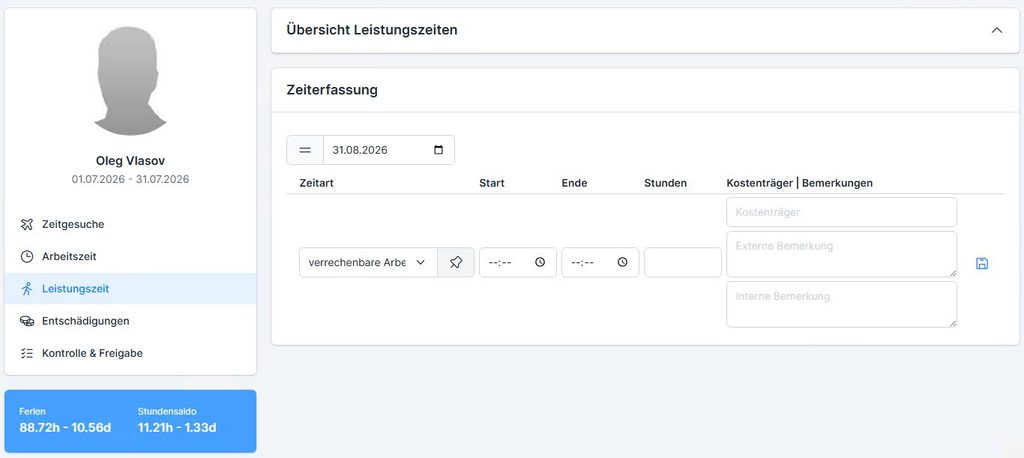
1. Select a time type #

First, select the desired time type, for example:

billable work time

The time types available depend on your company’s configuration.

2. Select a payer #

Select the appropriate cost center.

Depending on the configuration, this could be, for example:

  • Sales Order,
  • a project or
  • a cost center

act.

For an order-based service, select the corresponding order.

3. Track time #

Enter the start and end times for the service.

Alternatively, depending on the configuration, a duration can also be recorded.

4. Add a comment #

If necessary, you can enter an external or internal comment.

This allows additional information about performance to be documented.

5. Save the entry #

Save the entry you’ve entered by clicking the Save icon.

The entry will then be displayed in the overview of service times.


Edit Service Time #

You can edit existing time entries—provided you have the necessary permissions.

  1. Find the entry you’re looking for in the list.
  2. Open the entry for editing.
  3. For example, change the time type, cost object, start or end time, or a comment.
  4. Save the changes.

Which details can be changed depends on the applicable permissions and the configuration.


Working hours and time worked may differ #

The total number of service hours does not necessarily correspond to the total number of working hours in every case.

In the case of separate service recording, the following situation may arise, for example:

Working hours: 8 hours

Service Period:

  • 5 hours on Assignment A
  • 5 hours on Assignment B
  • Total: 10 hours

In this example, the working time remains at 8 hours. The work time may be longer if work performed is allocated to multiple orders, projects, or cost centers.

Note: Whether such a deviation is permitted depends on the settings for time types and the data entry profile.


Real-world example #

An employee works a total of 8 hours in a day.

His working hours are recorded in ” Working Hours “:

  • 8:00 a.m.–12:00 p.m.
  • 1:00 p.m.–5:00 p.m.

In addition, the employee tracks their work on various assignments:

  • 4 hours → Assignment A
  • 3 hours → Assignment B
  • 1 hour → internal cost center

This makes two pieces of information visible separately:

Working Hours:
How long did the employee work?

Service Period:
For which orders, projects, or cost centers was the service provided?


Important to Know #

  • Working time refers to the time spent working or being present at work.
  • Activity time refers to the activity reported against an order, a project, or a cost center.
  • Depending on the configuration, service time can be recorded in addition to or separately from working time.
  • Depending on the time type, an account assignment is required for each period of service.
  • Working hours and productive hours may total different amounts.
  • The available time types and permitted entries are determined by the company’s configuration and authorizations.

Mnemonic #

Working Hours = How long have I worked?
Time Worked = What Did I Work For?

Administrator, Internal user, Time recording
War dieser Artikel hilfreich für Sie?
Stecken Sie immer noch fest? Wie können wir helfen?

Wie können wir helfen?

Updated on 31. August 2026
Inhaltsübersicht
  • What is service time?
  • A Comparison of Working Hours and Productive Hours
  • View Service Time
  • Record Work Hours
    • 1. Select a time type
    • 2. Select a payer
    • 3. Track time
    • 4. Add a comment
    • 5. Save the entry
  • Edit Service Time
  • Working hours and time worked may differ
  • Real-world example
    • Important to Know
      • Mnemonic

  • Privacy Policy